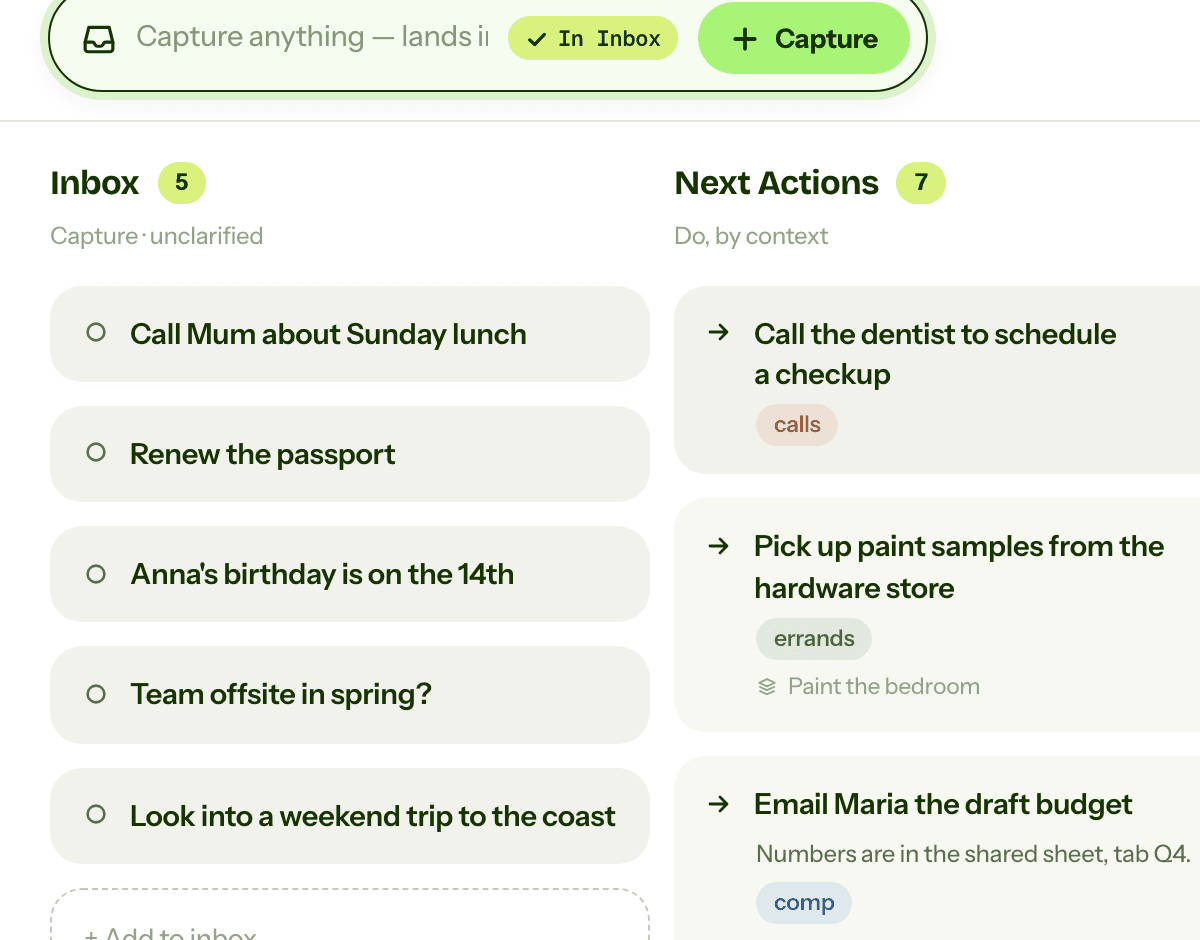
How to set up GTD in Obsidian (Getting Things Done as Markdown notes, synced to your phone and your AI)
A complete Getting Things Done setup in Obsidian, with screenshots: install the GTD Brain community plugin, sign in with an email code, and run capture, clarify, projects, waiting-for and the weekly review as plain Markdown notes that sync both ways with a board on the web, the phone apps and your AI assistants.
Start free for a month →No charge for your first month · Cancel anytime
On this page
The short version: install the GTD Brain community plugin (the Obsidian GTD plugin this guide is built on), sign in with your email, and your vault gets a GTD Brain folder with the classic Getting Things Done lists as plain Markdown, one note per item: Inbox, Next Actions grouped by context, Projects, Waiting For, Someday Maybe, plus a Weekly Review checklist. You capture by making a note in Inbox, clarify by moving it to another folder and setting a property, and the plugin syncs every change to a board that is also on your phone and in ChatGPT and Claude. Nothing leaves your vault except the notes inside that one folder. The rest of this guide is the setup, with screenshots, then how each GTD step works day to day, and where this differs from the Tasks-plugin way of doing GTD in Obsidian.
Step 1: install the Obsidian GTD plugin
Open Settings, Community plugins. If the vault is in Restricted mode, turn it off (the plugin needs to talk to GTD Brain, which Restricted mode forbids for every plugin). Click Browse, search for “GTD Brain”, then Install and Enable. You can also start from the plugin’s page in the Obsidian directory and press Add to Obsidian, which opens the same install screen in the app.
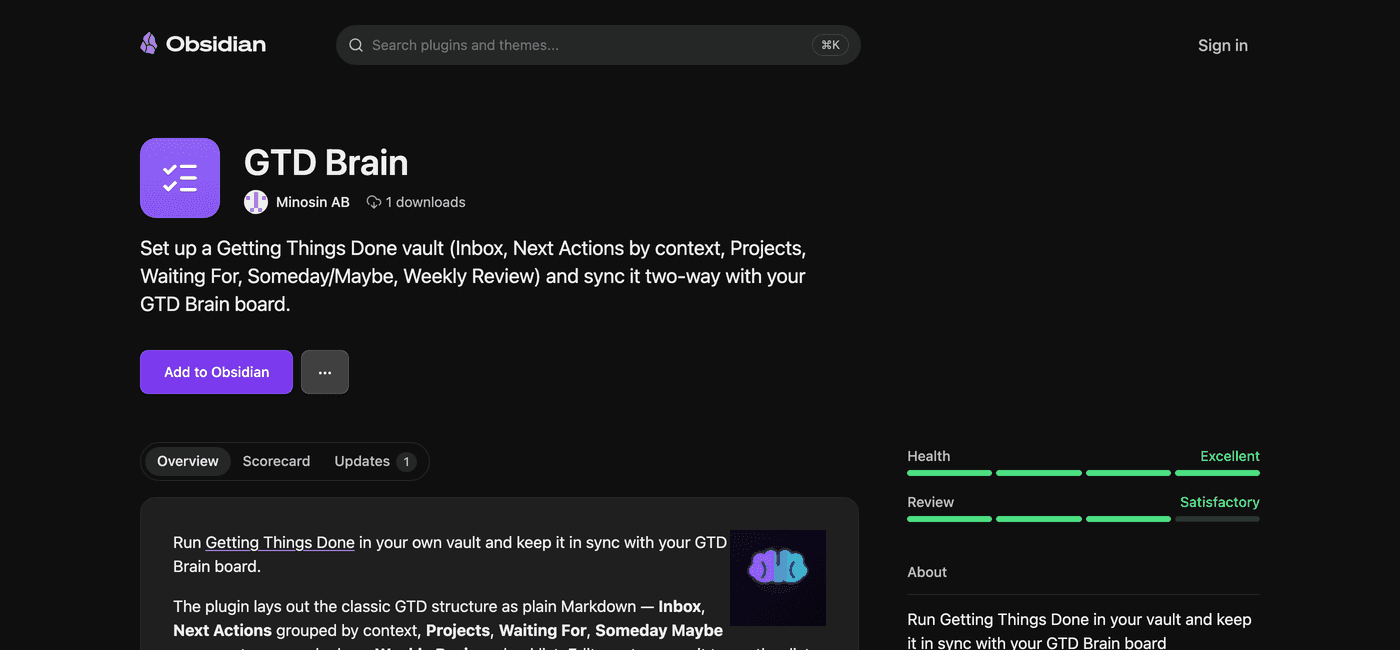
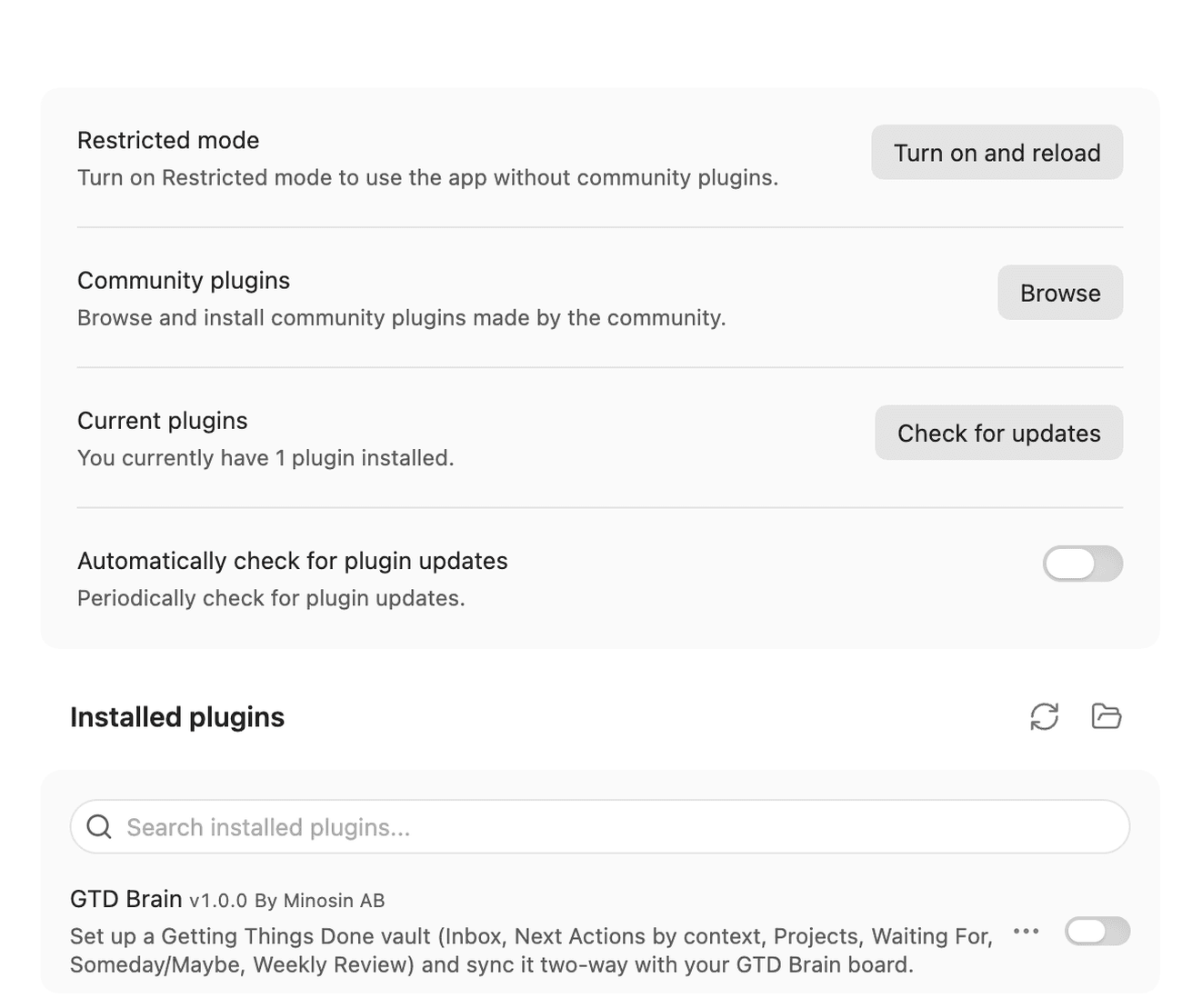
The plugin is open source and the code is on GitHub at github.com/minosin/gtdbrain-obsidian. It reads and writes only the notes inside its own folder and talks to one server, GTD Brain’s. Obsidian’s review reproduced the released build byte for byte from that repository, so what you install is what you can read.
Step 2: sign in with your email
Open the plugin’s settings tab (or run the command GTD Brain: Sign in) and press Sign in. Type your email, then the six-digit code we send you. There is no password and no API key. A new email creates a GTD Brain account with a starter board; an email you already use for GTD Brain, on the web or the phone app, connects the vault to that board.
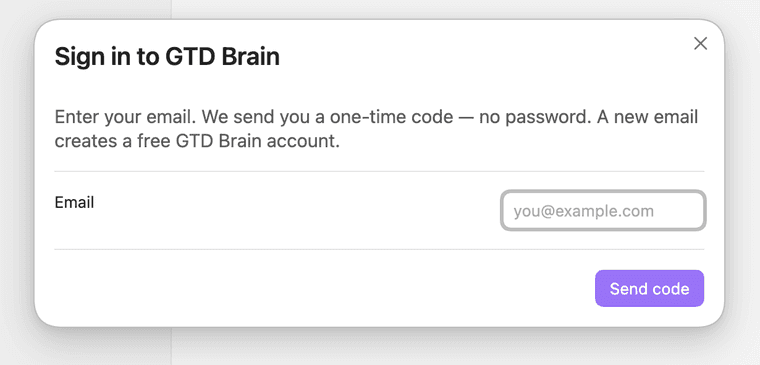
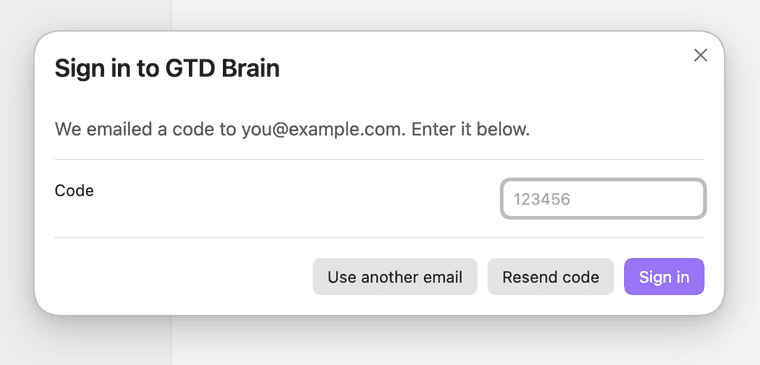
The moment the code is accepted the plugin creates the folders and pulls every card on the board into the vault as a note. With a brand-new account that is the starter board, a handful of example cards you can rename or delete. There is nothing else to set up.
What the GTD Brain plugin puts in your vault
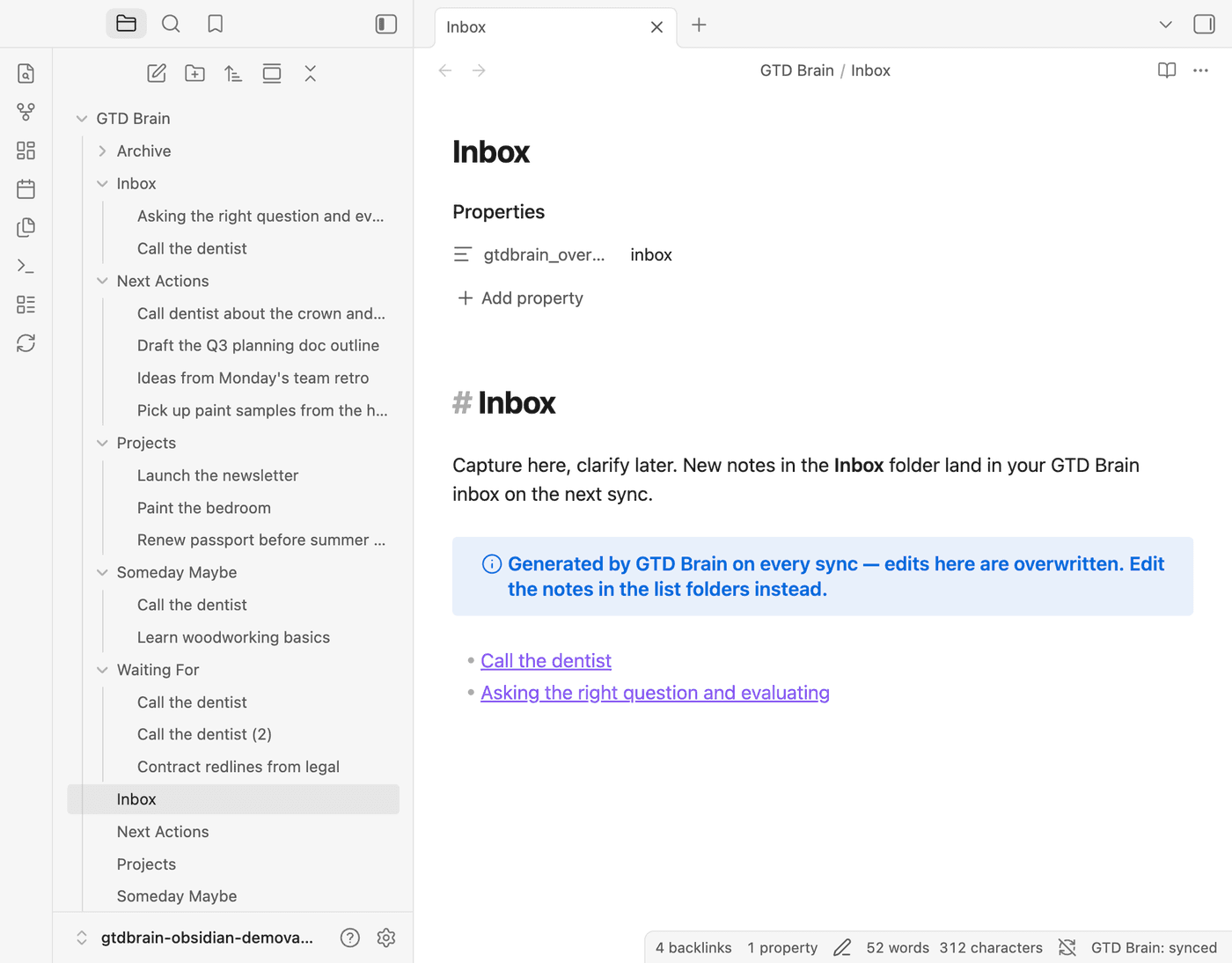
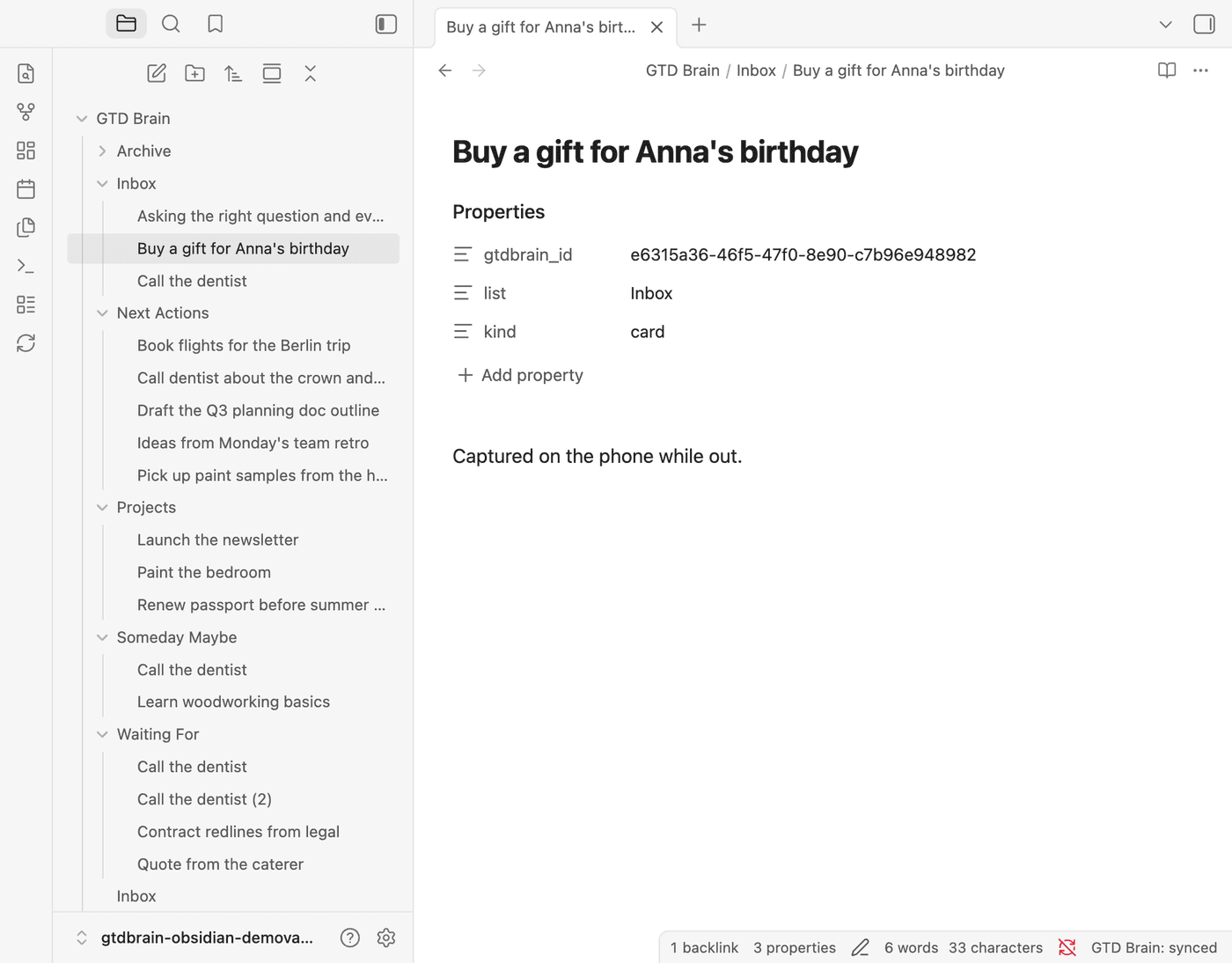
Everything lives under one folder, GTD Brain by default (you can rename it in the plugin settings). Inside it:
- One folder per list: Inbox, Next Actions, Projects, Waiting For, Someday Maybe, and Archive. Each card on the board is one note in the folder for its list. The note’s file name is the card title and its body is the card’s notes.
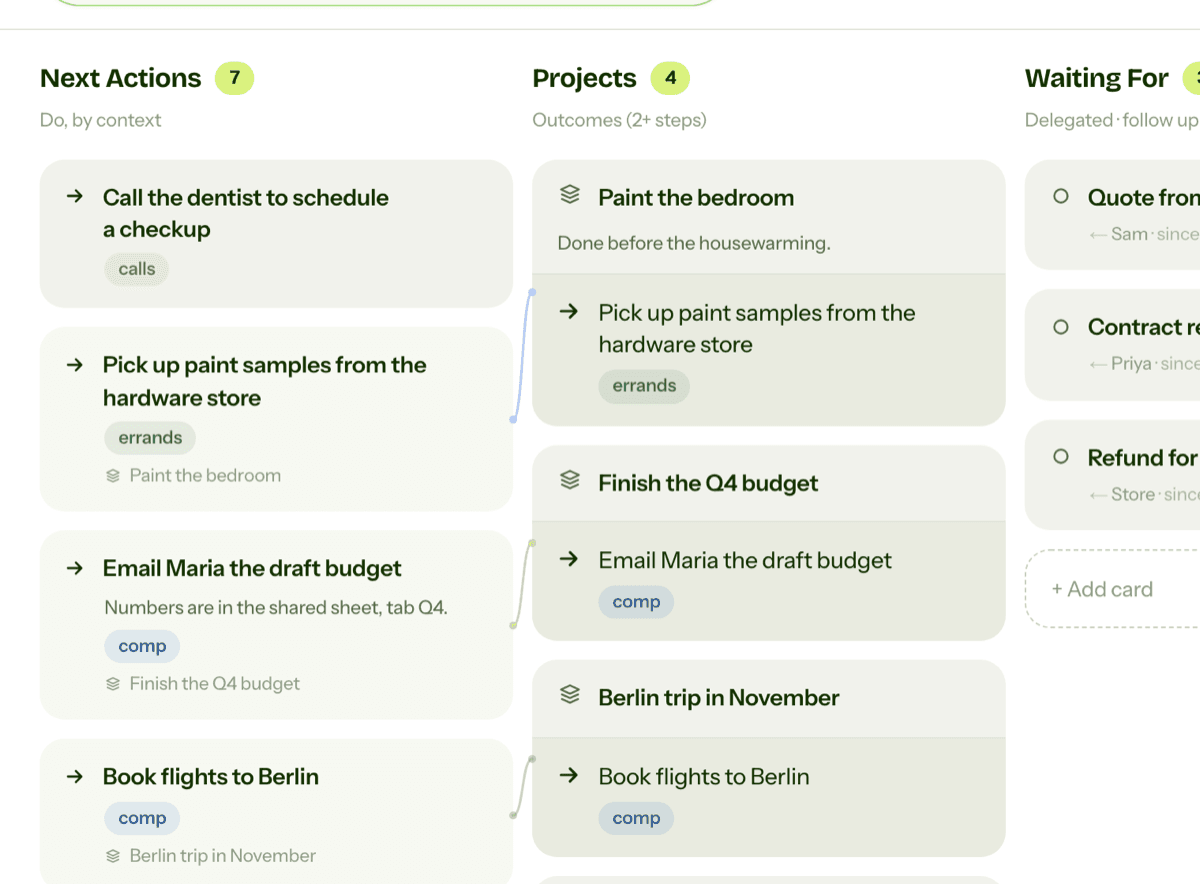
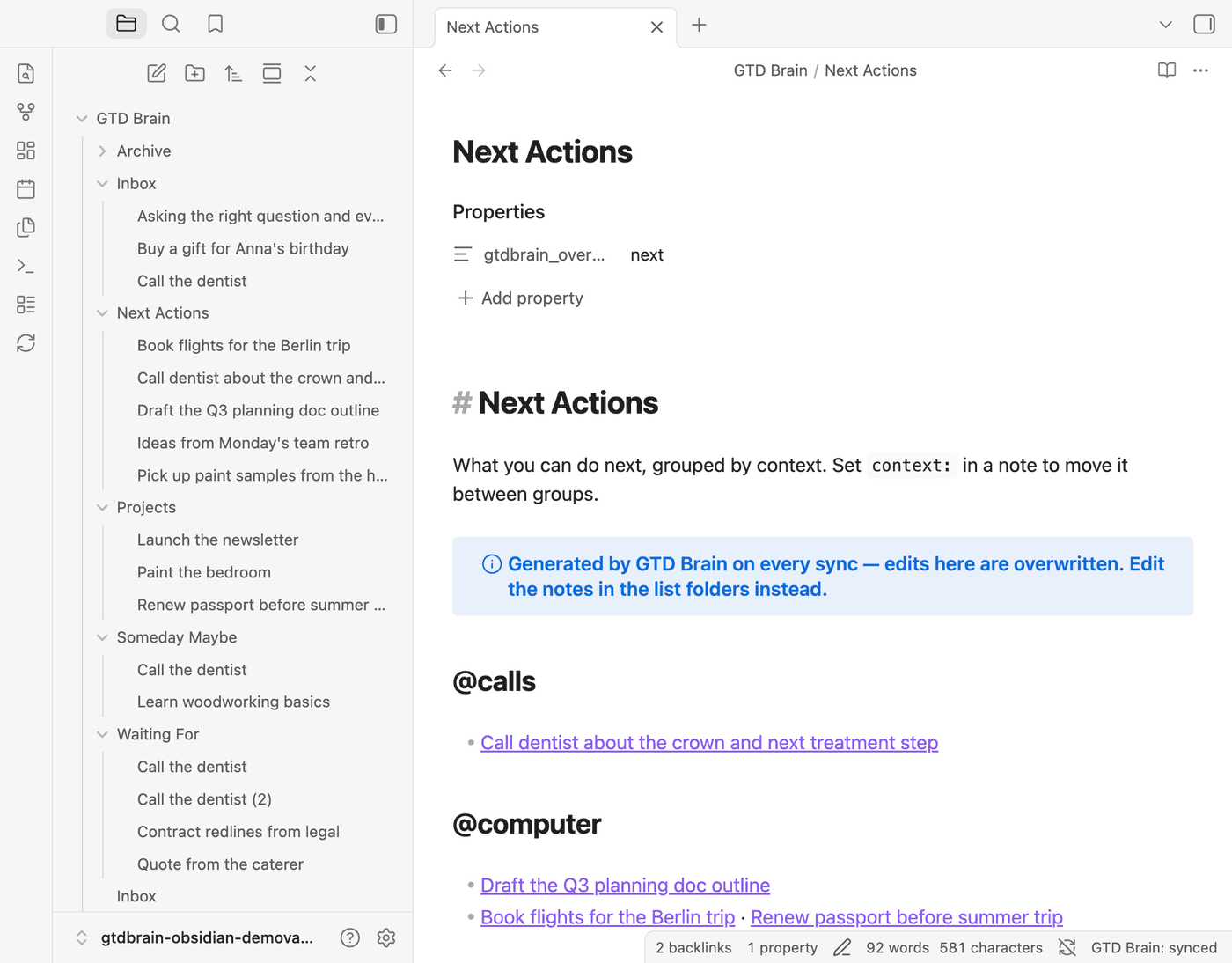
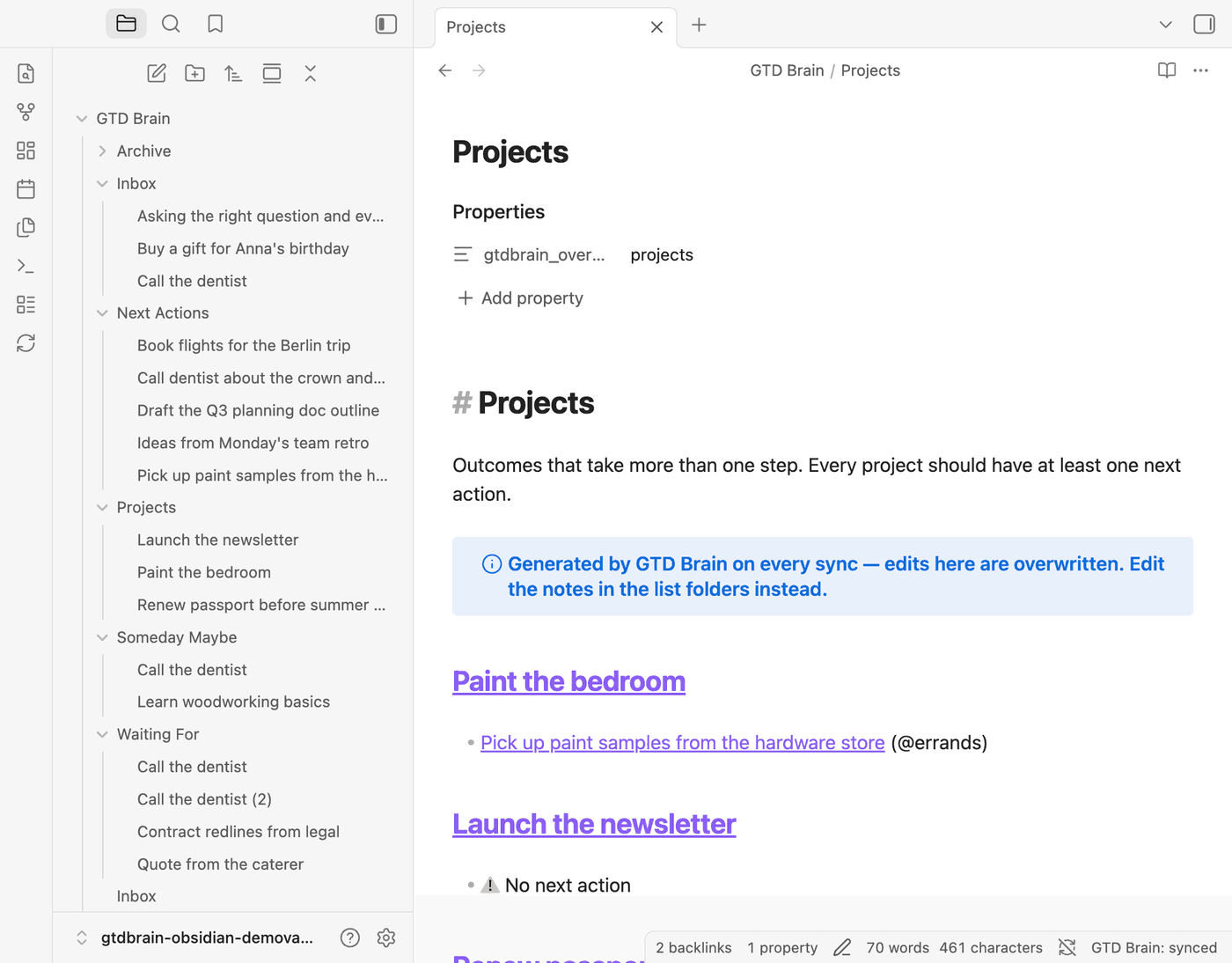
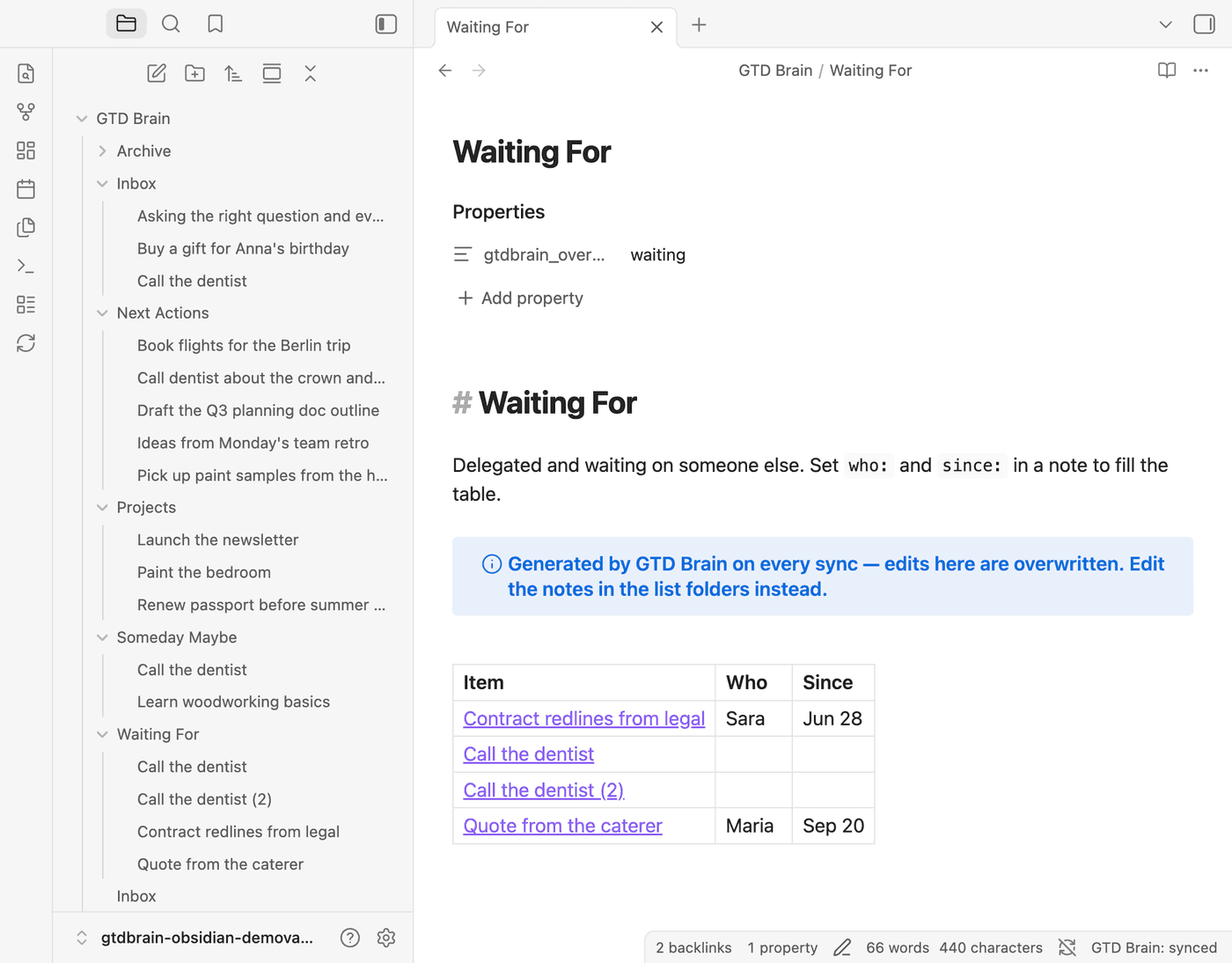
- One overview note per list(Inbox, Next Actions, Projects, Waiting For, Someday Maybe at the top level). These are generated on every sync and link to the notes: Next Actions grouped by context, Projects with each project’s actions under it, Waiting For as a table. Read them, do not edit them; the plugin overwrites them.
- Weekly Review, a checklist note that is created once and never touched again, so you can tune it.
A card note carries the GTD fields as frontmatter properties: list, kind, context, project, who and since, plus the card id. Any other property you add is yours and stays local, so Dataview and Bases work on the notes like on any others. Sync runs when you open the vault, every few minutes while it is open (the interval is in the settings), and whenever you run GTD Brain: Sync now or click the sync icon in the ribbon. The status bar shows the last result.
Capture: make a note in Inbox
Capture is a new note in the GTD Brain/Inbox folder. Right-click the folder, New note, type the thought as the title. If there is more to say, put it in the body. Do not sort while you capture; “book flights for the Berlin trip” is a fine inbox note and deciding what to do about it is a separate step. On the next sync it is a card in the Inbox column of the board, and from there in the phone app, in ChatGPT and in Claude.

It works the other way too. Capture on the phone, from the Telegram bot, or by telling ChatGPT to add something to your inbox, and the note is in your Inbox folder on the next sync, ready to be clarified at the desk.
Clarify: move the note and set a context
Clarifying an inbox note is a drag: move it from Inbox into the folder for what it is. A physical next step goes to Next Actions, an outcome that takes several steps goes to Projects, something you delegated goes to Waiting For, and an idea for later goes to Someday Maybe. The move is the decision; the plugin turns it into the right kind of card on the board.
For a next action, add a context property with the situation you need to be in: @calls, @computer, @errands, @home— the contexts on your board (the Next Actions overview lists them). If the action belongs to a project, add project with a link to the project note, for example [[Renew passport before summer trip]]. Obsidian’s Properties panel offers both as you type.

The Next Actions overview note regenerates on the next sync, grouped by context, with the project next to each action. When you want to work, open it and read the group for where you are.
Done with something? Delete the note (or move it into Archive). The card is archived on the board, never deleted, so a slip is one drag away from undone on the web app.
Projects: one note per outcome, actions linked to it
A project is a note in the Projects folder whose title is the outcome: “Paint the bedroom”, not “paint”. Its next actions live in Next Actions with the project property pointing at it. The Projects overview lists every project with its actions underneath and flags the ones with none, which is the one check that keeps projects from stalling.
Waiting For: who and since when
When you hand something off, move the note to Waiting For and add two properties: who you are waiting on and since when. The Waiting For overview renders them as a table, so chasing is a glance at the Since column.
The GTD weekly review in Obsidian: one checklist note
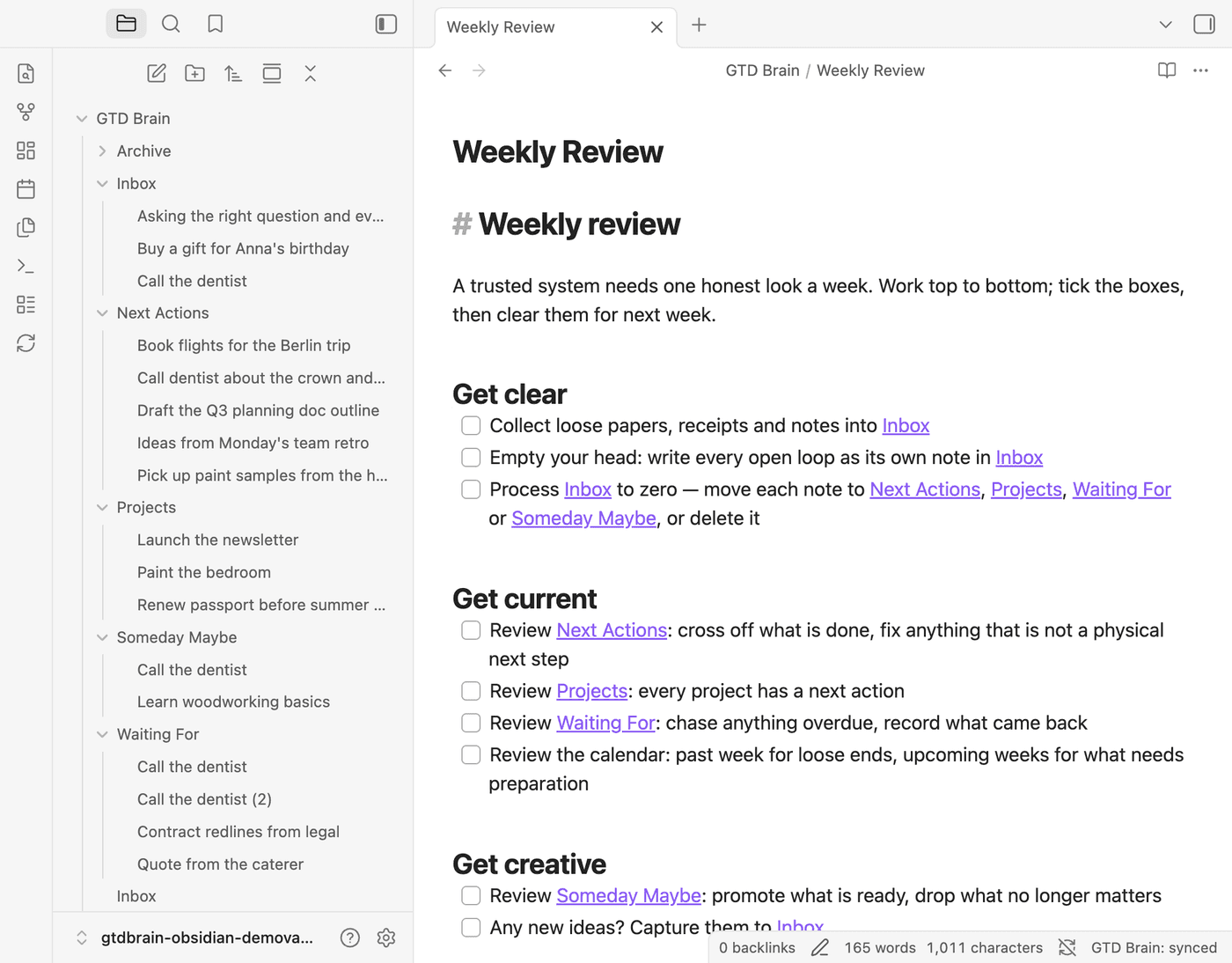
The Weekly Review note is a checklist in three parts: get clear (collect, empty your head into Inbox, process Inbox to zero), get current (Next Actions, Projects, Waiting For, the calendar), get creative (Someday Maybe, new ideas). Each line links to the overview it refers to. Tick the boxes as you go and clear them at the end; the plugin never rewrites this note, so add your own lines.
Obsidian Tasks, Dataview, and the vault-only way to do GTD
Before the plugin, the usual way to run Getting Things Done in Obsidian was the Tasks plugin: checkbox tasks anywhere in your notes, a tag per context such as #calls, and tasks query blocks that gather them into a Next Actions view and a Waiting For view, often with Dataview tables on top. It is real GTD and it works, as long as you accept its shape: the lists exist only inside the vault, so there is no inbox on a phone unless Obsidian and a synced vault are on it, and nothing outside the vault can read them. The GTD Brain notes are plain Markdown with frontmatter, so Tasks, Dataview and Bases keep working on them; what changes is that the same lists also exist as a board outside the vault.
The same GTD board on the web, your phone, ChatGPT and Claude
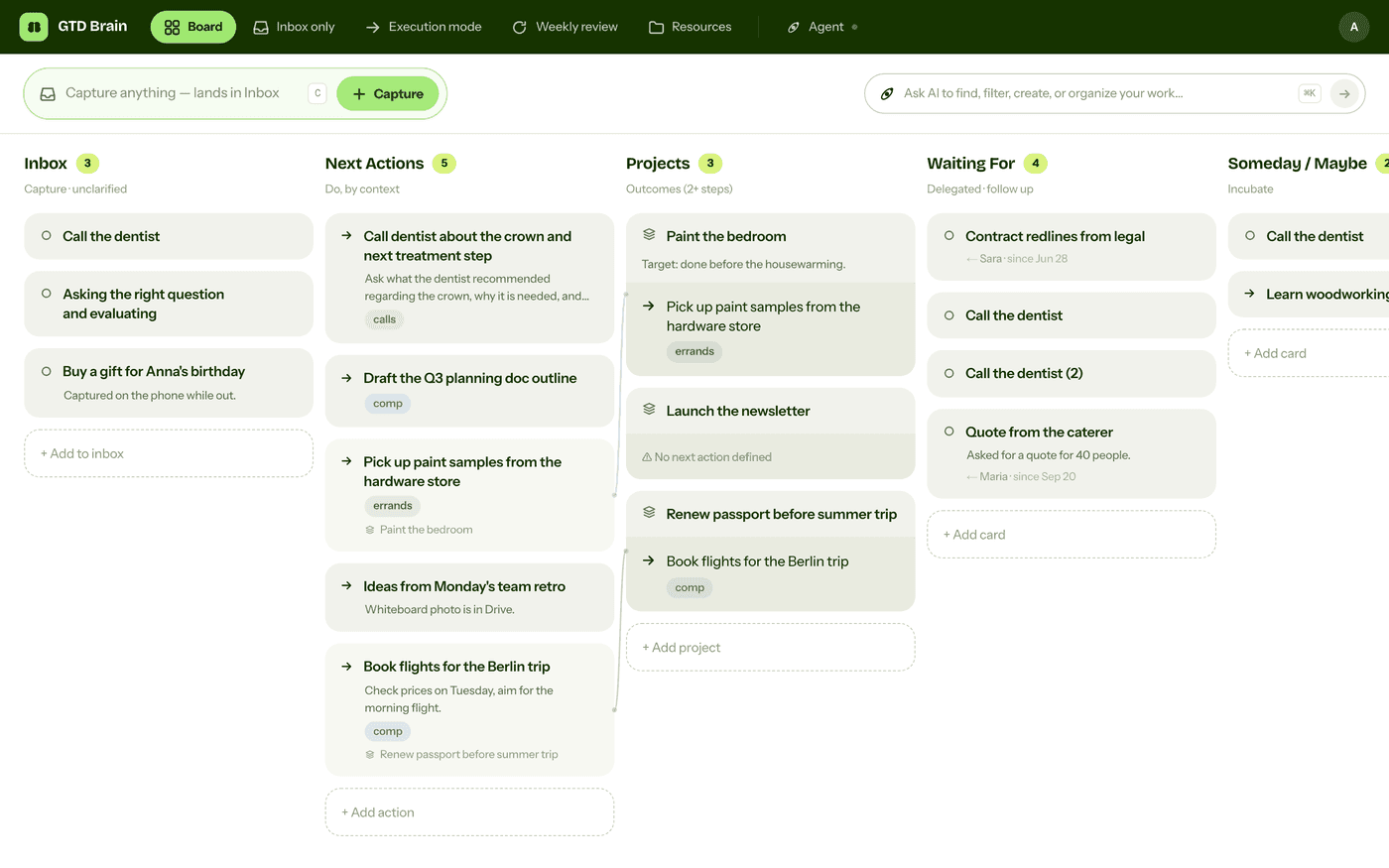
The point of syncing rather than keeping the lists only in Markdown is that the board exists outside the vault. The web app shows the same columns and cards, with the project links and the who/since you set in frontmatter. The iPhone and Android apps show them too, which is where capture actually happens for most people. And because GTD Brain is an MCP server, ChatGPT, Claude, Claude Code and the other assistants on the connect page can read and change the same board: ask “what are my next actions at the computer?” in a chat and it answers from the cards you clarified in Obsidian that morning.
GTD Brain is one board, and every surface reads and writes the same cards: the web app, the iPhone app, the Android app, and the assistants you connect over MCP — ChatGPT, Claude and the rest on the connect page. One account and one subscription cover all of them; the AI clarifying and the guided weekly review are described on GTD with AI.
Things worth knowing
- Only what is inside the
GTD Brainfolder is read or sent, and only the title, body and the six GTD properties. The rest of the vault is not touched. - Conflicts are rare because sync is frequent, but when the same card changed on both sides since the last sync, the fields you changed in the note win and the board wins the rest.
- The overview notes and the Archive folder are generated; your writing belongs in the card notes and the Weekly Review note.
- The plugin sends no telemetry, in line with Obsidian’s developer policy. The only network traffic is the sync itself.
- The plugin is free to install. Sending your changes to the board needs a GTD Brain membership, the same one across web, iOS and Android, and the yearly plan starts with a free month. Without it, the board still comes into the vault and your edits wait in the notes until you join.
Start
Install the plugin, sign in, and do your first brain dump as notes in the Inbox folder: one note per open loop, titles only, no sorting. Then drag each one into the folder where it belongs. That is a working GTD system in Obsidian, in about ten minutes, with a board behind it that your phone and your assistants can use. The full setup steps are also on the Obsidian connect guide.
Questions people ask
Can you do GTD in Obsidian?
Yes. With the GTD Brain community plugin, a GTD Brain folder in your vault holds one folder per list (Inbox, Next Actions, Projects, Waiting For, Someday Maybe) with one Markdown note per item, generated overview notes, and a Weekly Review checklist. Capture is a new note in Inbox; clarifying is moving it to another folder and setting a context property.
Is there an Obsidian GTD plugin?
Yes. GTD Brain is an open-source community plugin in Obsidian's plugin directory: search “GTD Brain” under Settings, Community plugins, or press Add to Obsidian on its directory page. It sets up the Getting Things Done lists as Markdown notes in one folder and syncs them two-way with a board on the web, in the iPhone and Android apps, and in ChatGPT and Claude. Syncing your changes needs a GTD Brain membership; the yearly plan starts with a free month.
Can you do GTD in Obsidian with the Tasks plugin?
Yes, and it is the common vault-only setup: checkbox tasks anywhere in your notes, a tag per context, and tasks query blocks that gather them into Next Actions and Waiting For views. Its limit is that everything stays in the vault, so there is no inbox on a phone without Obsidian and nothing an assistant can read. The GTD Brain notes stay plain Markdown, so Tasks, Dataview and Bases work on them too.
How do GTD contexts work in Obsidian with the GTD Brain plugin?
A next action carries a context property in its frontmatter, such as @calls, @computer, @errands or @home. The Next Actions overview note is regenerated on every sync with the actions grouped under those contexts, so working from a context is opening the overview and reading its section. Contexts are the ones on your board, shared with the web and phone apps.
Does the Obsidian vault sync with the GTD Brain phone app?
Yes, both ways. A note created, edited, renamed or moved in the vault changes the card on the board, and a card captured on the iPhone or Android app, from the Telegram bot or by an assistant like ChatGPT or Claude appears in the vault on the next sync. Sync runs on open, on a timer and on the Sync now command; nothing is ever deleted, only archived.
What does the GTD Brain plugin read from my vault?
Only the notes inside the GTD Brain folder, and only their title, body and the GTD frontmatter fields (list, kind, context, project, who, since). Nothing outside that folder is read or sent, the plugin sends no telemetry, and it talks to a single server. It is open source, and Obsidian's review reproduced the released build from the public repository.
Start free for a month →No charge for your first month · Cancel anytime