How to do GTD in Gemini CLI (Markdown lists, slash commands, and where it breaks)
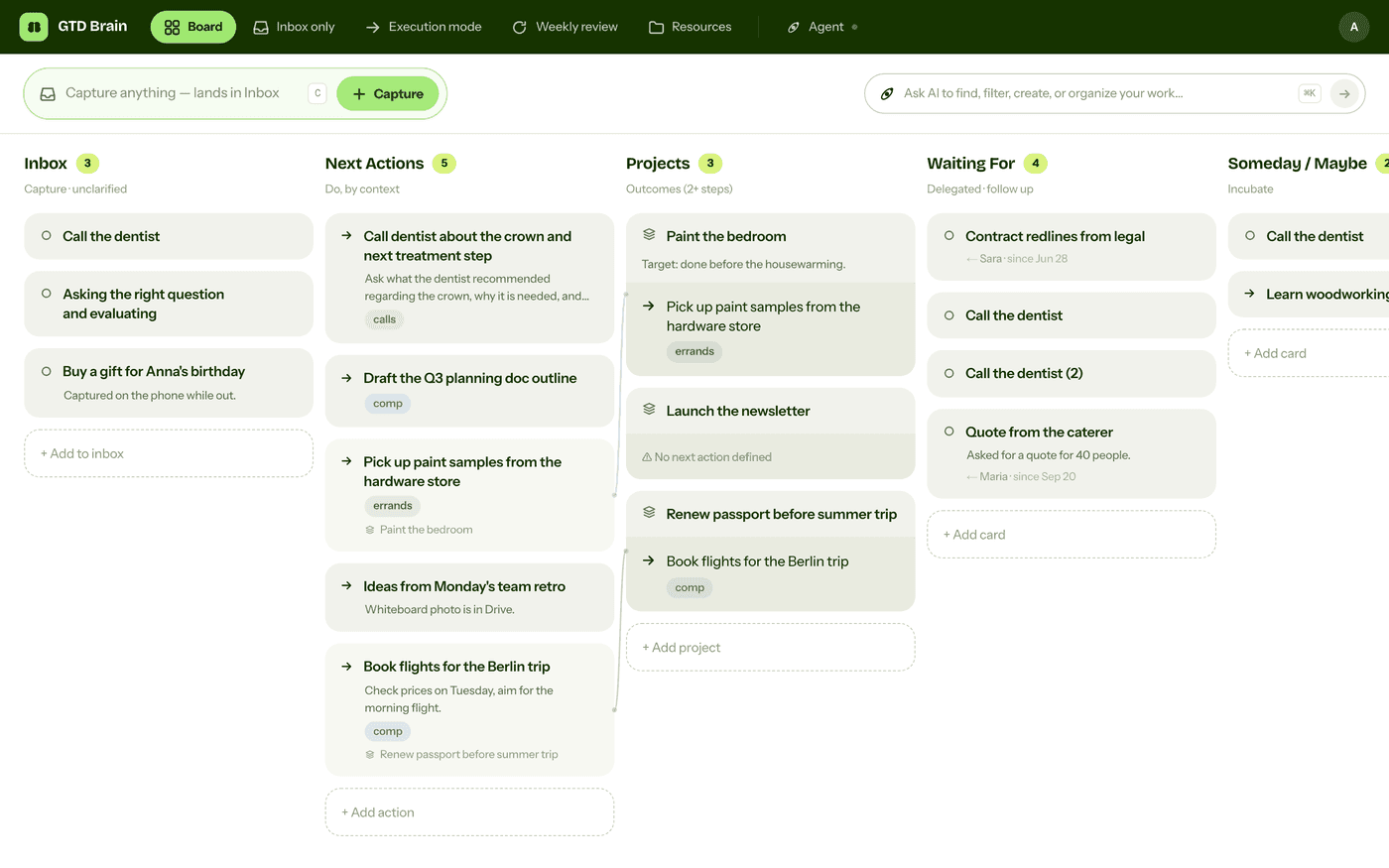
A complete Getting Things Done setup inside Gemini CLI: one folder with a Markdown file per list, a context file that teaches the method, custom slash commands for capture, what-now, a daily clarify and the weekly review, then the point where lists in a folder on one machine stop working and the GTD Brain extension that keeps the terminal workflow on a board your phone and your other assistants share.
Start free for a month →No charge for your first month · Cancel anytime
On this page
The short version: if Gemini CLI is open all day anyway, it is the fastest GTD capture tool you own, and a surprisingly good clarifier. Give it a folder with five Markdown files, one per Getting Things Done list, teach it the method in a GEMINI.md, and add a handful of custom slash commands so that “/gtd:capture fix the flaky auth test” appends a line to your inbox without you leaving the terminal. That is a real GTD setup, it costs nothing beyond the CLI you already have, and it is the first half of this guide. The second half is the point where a to-do system that lives in one folder on one machine stops being a system, and the one-command extension that keeps the terminal workflow and moves the lists to a board.
Step 1: one folder, five files
Make a folder, say ~/gtd, with inbox.md, next-actions.md, projects.md, waiting-for.md and someday.md. Each file is a flat Markdown checklist, one item per line, and that is the whole data model. Gemini CLI reads and edits files in the directory it was started in, so the lists are visible to it the moment you run gemini inside ~/gtd, and every edit it makes is a plain diff you can watch scroll past. Put the folder in git. You will want the history by the end of the week, for reasons Step 8 gets into.
Contexts go on the action as a tag: - [ ] Call the dentist about the crown #calls, - [ ] Buy a washer for the kitchen tap #errands. A project line in projects.md names the outcome, not the steps (“Passport renewed before the spring trip”), and a waiting-for line carries the person and the date you asked: - [ ] Sam: the invoice payment (asked 12 Sep).
Step 2: teach Gemini the method in GEMINI.md
Gemini CLI loads a GEMINI.md from the current folder into every session, so this is where the rules live. Keep it short and specific; the model follows a rule it can quote and ignores an essay. Something like:
This folder is my Getting Things Done system. inbox.md holds raw captures; next-actions.md holds single physical steps, verb-first, each ending in a #context tag (#calls #computer #errands #home); projects.md holds outcomes that need more than one step, and every project must have one line in next-actions.md; waiting-for.md holds things other people owe me, with their name and the date I asked; someday.md is the parking lot. When I mention something I need to do, append it to inbox.md immediately and do not sort it. Never answer a question about my tasks from memory: read the file first. Never delete a line; mark it done with [x]. Rewrite an inbox line as a verb-first action before moving it. End every answer with one next step I can take.
That last rule set is doing real work. Without “read the file first” Gemini will confidently list next actions from three turns ago; without “never delete” a clumsy edit takes a list with it.
Step 3: slash commands for the five moves
Gemini CLI custom commands are TOML files under ~/.gemini/commands/ (for every project) or .gemini/commands/ inside the folder, and a subdirectory becomes a namespace, so gtd/capture.toml is /gtd:capture. Each file is a description and a prompt, with {{args}} standing in for whatever you typed after the command. The capture one:
description = "Append one or more items to inbox.md"
prompt = """Append the following to inbox.md, one "- [ ]" line per distinct item,
without clarifying or tagging anything: {{args}}
Then confirm with the lines you added."""
Do the same for /gtd:what-now(“read next-actions.md, keep the open lines whose tag matches {{args}}, pick the two or three that fit and say why”), /gtd:clarify (Step 6) and /gtd:review(Step 7). Because a command is only a prompt, the version of “what now” that fits how you work is a one-line edit away, which is more than most task apps give you.
Step 4: capture while you code
This is the part Gemini CLI is genuinely better at than any app. You are in the middle of a change and remember the dentist; /gtd:capture call the dentist about the crown and you are back in the diff. You notice a hack while reading a file; “capture a card for every TODO you just found, with the file path” and the inbox has three lines you would never have typed by hand. Because the capture command is forbidden from sorting, it is fast and it is safe: the worst outcome is an extra line in a file whose only job is to hold extra lines.
Step 5: what now, projects and waiting for
“What can I do now, I’m at my computer with twenty minutes” is a read of next-actions.md filtered by #computer, and Gemini does it well because a Markdown list with tags is exactly the kind of text it is good at. Ask it to check that every project in projects.md has a matching line in next-actions.md and it will find the stalled ones. Ask what in waiting-for.md is older than a week and it does the date arithmetic. None of that needs a feature; it needs the rules from Step 2 and the habit of asking.
Step 6: clarify the inbox every day
Once a day, /gtd:clarify: a command whose prompt reads inbox.md top to bottom and, for each line, asks you one question, then does one of five things: rewrite it as a verb-first action with a tag and move it to next-actions.md; turn it into an outcome in projects.md plus a first action; move it to waiting-for.md with a name and date; park it in someday.md; or mark it done. The inbox file should be empty when the command finishes. This is the step where an LLM earns its place in a GTD system, because “what is the next physical action here” is a question it asks more patiently than you do.
Step 7: the weekly review
/gtd:review walks the folder in order: empty the inbox, then read every project and demand a next action for each, then chase anything in waiting-for older than a week, then read someday and ask what should be activated or dropped, then check completed lines and offer to archive them. Write the prompt so it works one list at a time and waits for your answer, otherwise the model reviews your week for you in one long, useless message. Put a repeating calendar event on Friday afternoon that just says gemini then /gtd:review.
Where it breaks
The setup above runs well for exactly as long as your life fits inside one terminal on one machine. Then a specific thing happens: you are on the bus, or in a meeting, or at the dentist, and something needs capturing, and the inbox is a file in a folder on a laptop that is closed. So it goes into your head, or into a note on the phone that is not the inbox, and the one rule GTD cannot survive breaking, that everything goes in one place, is broken by lunchtime. The same applies in reverse: #errands is the list you need when you are out, and out is precisely where the file is not.
The second problem is that a model editing a Markdown file is not a database. Gemini rewrites the file to make a change, so a bad edit can drop a line, reorder a list, or “tidy” the tags you were relying on, and the only thing standing between you and a lost project is the git history you set up in Step 1. Within a session it also remembers the version of the list it read ten minutes ago, which is why Step 2 had to forbid answering from memory, and why it still sometimes does. There are no counts, no “this project has no next action” badge, no ordering you did not type; every check is a prompt you have to remember to run. And if you also want the board in ChatGPT on your phone, or in Claude, or in a second machine’s terminal, you are now syncing a folder of Markdown between three tools that each want to be the one editing it.
The honest summary is that Gemini CLI is excellent at capture and clarify, the two steps most apps do badly, and gives you nothing for keeping the lists somewhere they can be trusted or reached.
Step 8: keep the terminal, give the lists a board
The fix is to keep the workflow and move the storage. GTD Brain is a Getting Things Done board with the six lists built in, and it ships a Gemini CLI extension that replaces the folder with a hosted MCP server, so the same /gtd: commands read and write a board that is also on your phone. Install it with one command:
gemini extensions install https://github.com/minosin/gtdbrain-gemini-extensionthen, inside Gemini CLI, run /mcp auth gtdbrain once. A browser tab opens on GTD Brain’s sign-in page: enter your email, type the code it sends, click Allow. No API key, no config file to edit, and signing in with a new email creates the account. The extension is only configuration and prompt text: a manifest pointing at the server, a GEMINI.md with the same rules as Step 2 written against real tools (capture first, verb-first actions, never answer from memory, never delete), and /gtd:capture, /gtd:what-now, /gtd:inbox-zero, /gtd:waiting-for, /gtd:weekly-review and /gtd:setup as commands. You can read all of it in the public repository.
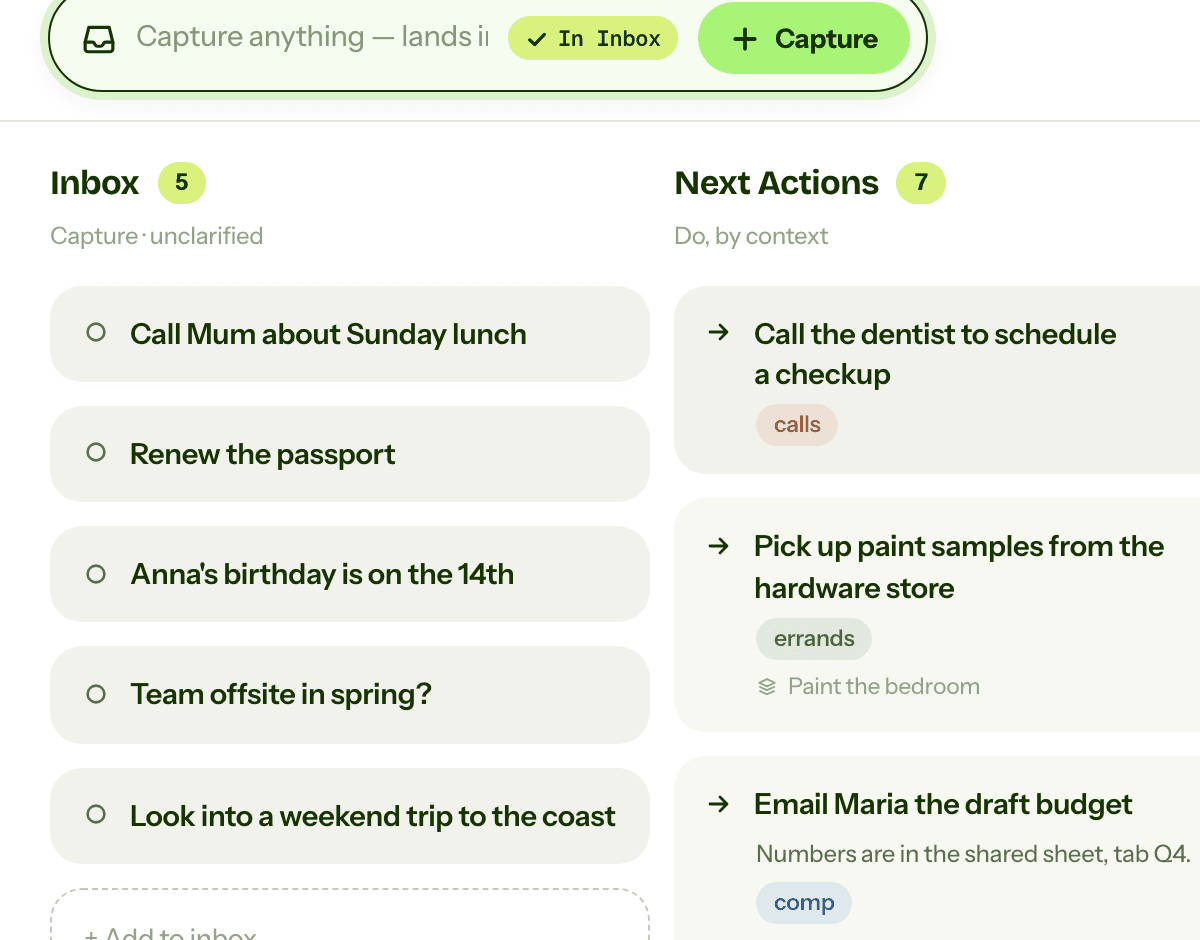
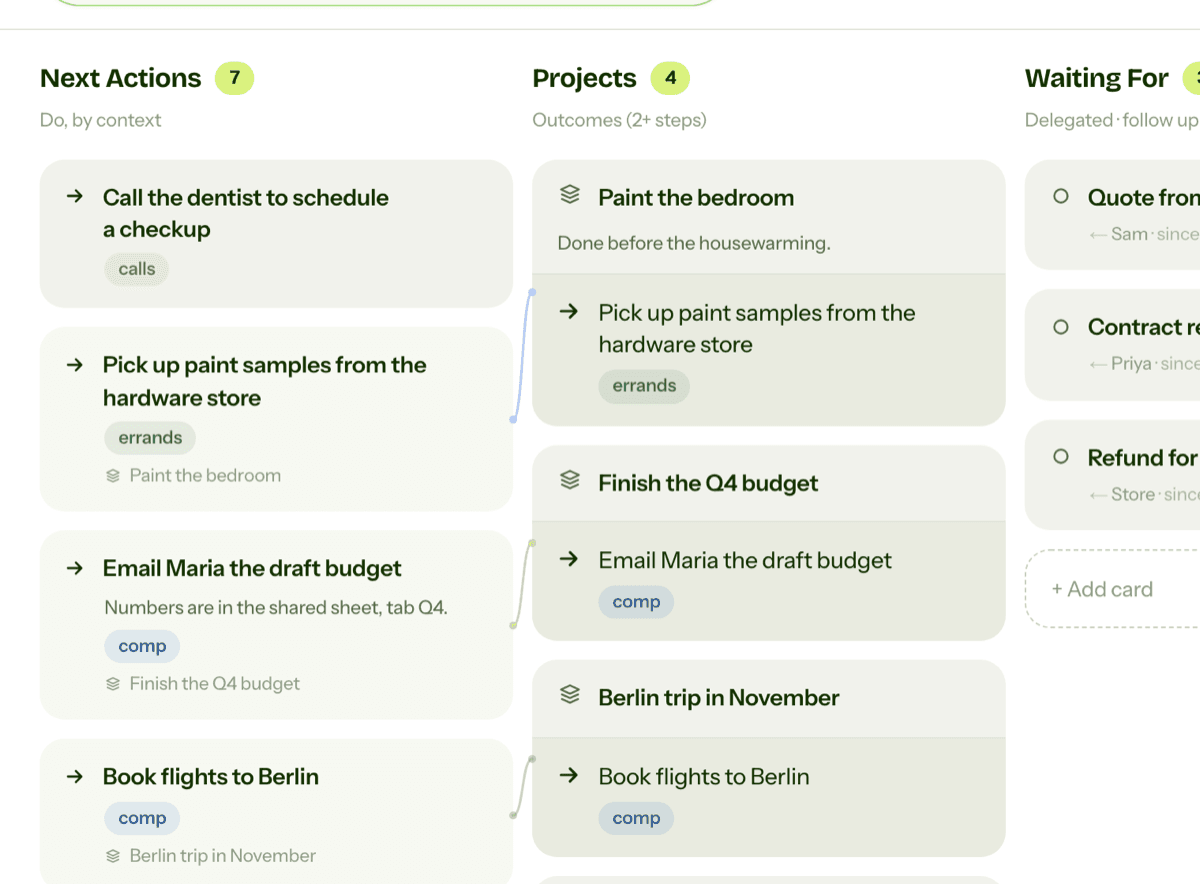
What changes is everything from the Where-it-breaks section. Capture on the bus goes into the same Inbox from the iPhone or Android app, or from a message to the Telegram bot, and it is in the terminal when you get back. #errands is a context on a card, so the list is on your phone when you are out. Cards cannot be deleted by the model at all, only archived, and archived cards stay recoverable, so a clumsy tool call can no longer take a project with it. The board knows which cards are done, which project has no next action, and how long each waiting-for item has been waiting, so “what now” is answered from state rather than from a file the model read earlier. And the same board is what ChatGPT and Claude see through their own connections, so the TODO comments you captured from the terminal are the cards ChatGPT clarifies with you in the evening.
Setup takes a minute, and the Gemini CLI connect guide has the troubleshooting. A new account gets a few free tool actions to try the connection; ongoing use needs the same subscription that covers the web and phone apps.
If you want the method without the workarounds
Everything above is real GTD, and plenty of people run it in Gemini CLI for years. I built GTD Brain for the parts that keep breaking: it is a board with the GTD lists built in (Inbox, Next Actions with contexts, Projects, Waiting For, Someday), a built-in agent that clarifies your inbox into next actions, and a guided weekly review that walks you through the whole board card by card. The same board is on the iPhone app, the Android app and the web, and you can talk to it from ChatGPT, Claude and other assistants through the assistant connections.
You sign in with an email code, no password. The yearly plan starts with a free month and you can cancel before it bills. If you have read this far, you already know how the lists work, so the setup takes about two minutes: sign in at gtdbrain.com and do your first brain dump into the inbox.
Questions people ask
Can you do GTD in Gemini CLI?
Yes. Make a folder with one Markdown file per GTD list (inbox, next actions with #context tags, projects, waiting for, someday), describe the rules in a GEMINI.md so Gemini captures first and never answers from memory, and add custom slash commands under ~/.gemini/commands/gtd/ for capture, what-now, a daily clarify and the weekly review. It is free, and capture never leaves the terminal.
Is there a GTD extension for Gemini CLI?
Yes. The GTD Brain extension installs with gemini extensions install https://github.com/minosin/gtdbrain-gemini-extension and adds a hosted MCP server, a GEMINI.md that teaches the method, and /gtd:capture, /gtd:what-now, /gtd:inbox-zero, /gtd:waiting-for and /gtd:weekly-review commands. Sign in once with /mcp auth gtdbrain using an email code; there is no API key. It is open source under MIT.
How do you add a task to GTD Brain from Gemini CLI?
Say it or use the command. Once the extension is installed and signed in, typing /gtd:capture call the dentist about the crown creates a card in your Inbox, and so does mentioning the task in a normal prompt, because the context file tells Gemini to capture first and clarify later. Several items in one message become several cards, and the card is on your phone immediately.
What breaks when you keep GTD lists as Markdown files for Gemini CLI?
Two things. The lists live in one folder on one machine, so there is no inbox when you are away from the laptop and no errands list when you are out, which breaks the one-place rule GTD depends on. And a model editing a Markdown file can drop or reorder lines and answer from a stale read, so every check, like a project with no next action, is a prompt you must remember to run.
Start free for a month →No charge for your first month · Cancel anytime