How to do GTD in Notion (with a free template, and what Notion still will not do)
A complete Getting Things Done setup in Notion, with screenshots: duplicate the free GTD Weekly Review template, capture into the Inbox, clarify into Next Actions on a board grouped by context, keep Projects linked to their next actions, run the three-phase weekly review checklist, then where Notion stops asking you questions and how Notion AI, ChatGPT or Claude can run the review with you.
Start free for a month →No charge for your first month · Cancel anytime
On this page
The short version: Notion is the best of the general-purpose tools for keeping GTD lists, because a Notion database can do the two things a plain list cannot: link a project to its next actions, and show the same actions grouped by context. So do not build it from scratch. Duplicate the free GTD Weekly Review template and you get the five Getting Things Done lists as databases (Inbox, Next Actions with contexts, Projects with a two-way link to their actions, Waiting For, Someday/Maybe) and a weekly-review checklist in the classic three phases, on any Notion plan, for nothing. The rest of this guide is that setup, with screenshots, then how each GTD step works in it day to day, then what Notion still will not do for you and the two ways to get an assistant to run the review with you.
Step 1: duplicate the template
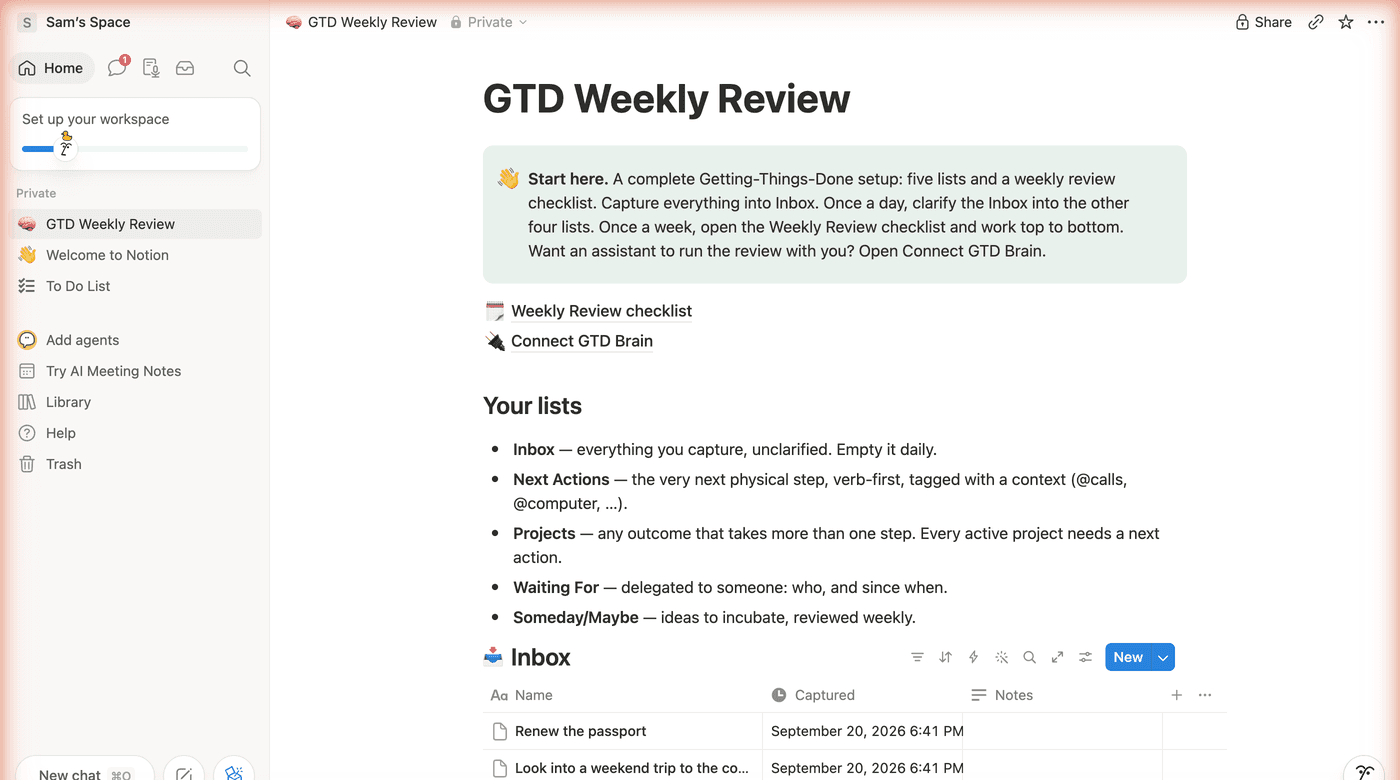
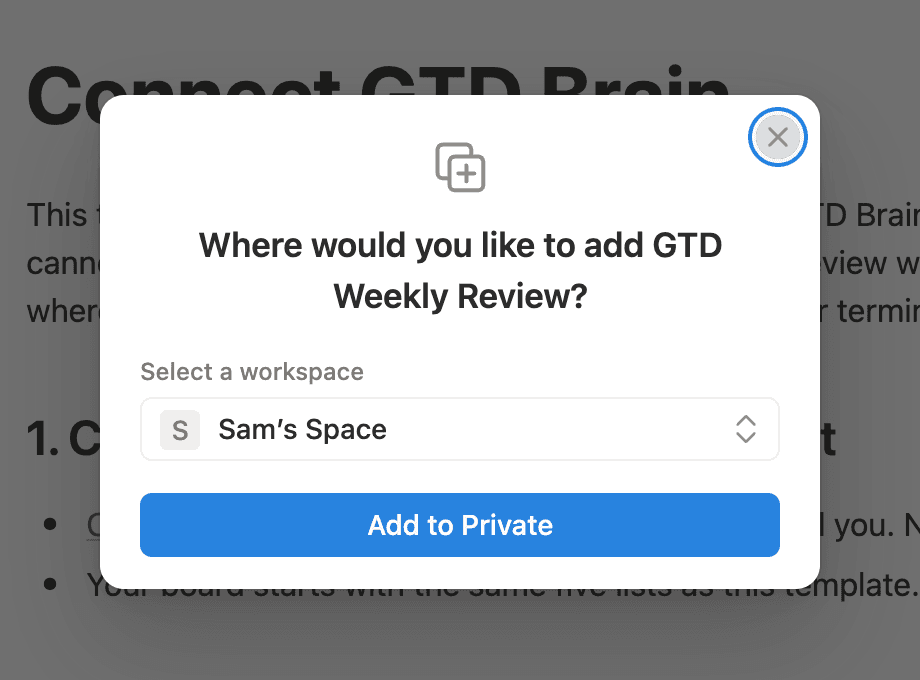
Open the template page and click the duplicate icon at the top right (two overlapping squares, next to Share). Notion asks which workspace to add it to and puts the copy in your Private section. That is the whole install. The copy is yours, so rename and rearrange it as you like. If you are new to Notion, sign up first with an email code; the free plan is enough for everything in this guide.
Step 2: what you get
The page has five inline databases under a short description of each list, and two sub-pages: the Weekly Review checklist and a Connect GTD Brain page you can ignore until the end of this guide. Each database has only the properties GTD needs. Inbox has a Name, Notes and a Captured timestamp Notion fills in for you. Next Actions has an Action, a Context select (@calls, @computer, @errands, @desk, @home, @office), a Done checkbox, an optional Due date and a Project link. Projects has the outcome, a Status (Active, On hold, Done) and the list of its next actions, which is the other end of that link. Waiting For has the item, who has it and since when. Someday/Maybe has the idea and an Area.
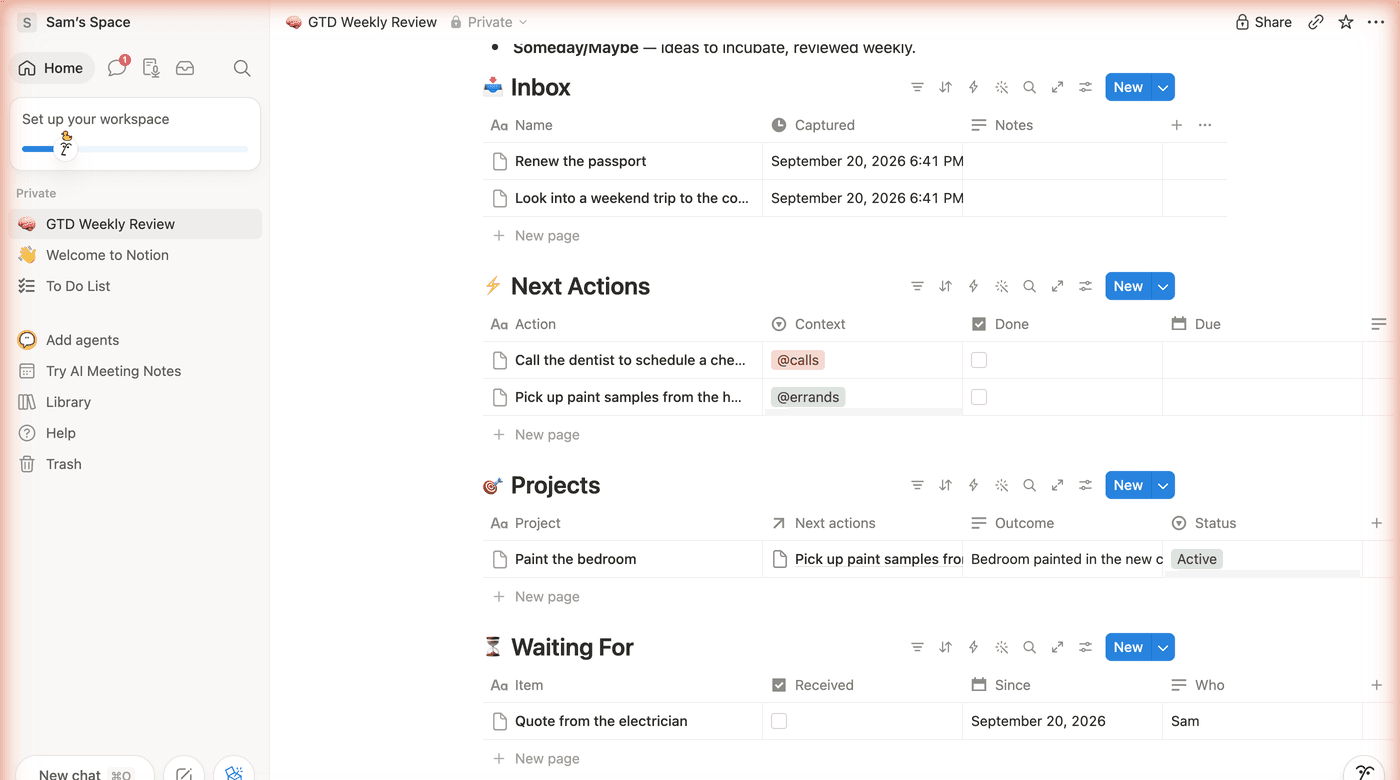
That is deliberately less than most GTD templates for Notion, which tend to arrive with priorities, energy levels, effort estimates, areas of responsibility, and a dashboard. Every extra property is a decision you have to make at capture time, and GTD works because capture is decision-free. Add fields later if you find you miss them. Most people do not.
Step 3: capture into Inbox
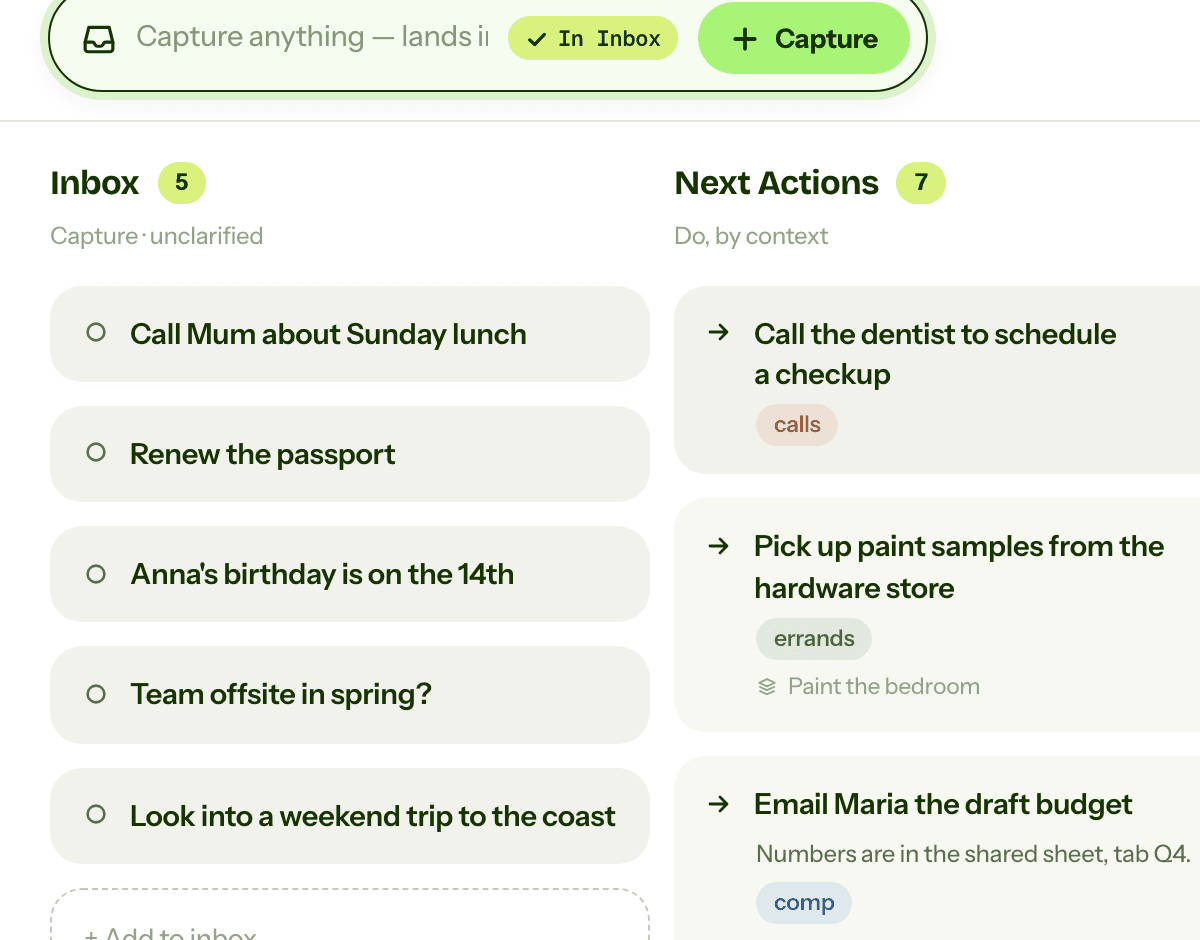
Everything goes into the Inbox database first, as a new row with the thing on your mind as its name: “dentist said something about a crown”, “passport expires next spring”, a link someone sent you. Do not pick a context, do not decide whether it is a project. On the desktop, the Inbox's New button is the fastest route. On the phone, favourite the template page so it is one tap from the Notion app's home, because the app opens on the last page you had open, which is usually the wrong one.
The Captured timestamp is there for a reason: an inbox item older than a day or two is a thing you are avoiding, and the date makes that visible. The goal is an empty Inbox every evening, not a full one you scroll.
Step 4: clarify into Next Actions, and add the board view
Once a day, take each Inbox row and decide what it is. If it is a single physical action, create it in Next Actions, written so you can do it without thinking (“Call the dentist to book the crown fitting”), give it a Context, and delete the Inbox row. If it takes more than one step, create the outcome in Projects and the first step in Next Actions with the Project link set. If someone else has it, Waiting For. If it is not happening soon, Someday/Maybe. If it is nothing, delete it.
The template ships with Next Actions as a plain table. Add the board view yourself; it takes twenty seconds and it is the reason Notion beats a plain list for this. Hover over the Next Actions title, click the + that appears next to it, pick Board, and Notion groups the cards by Context on its own because that is the only select property. Name the view “By context”. Now “what can I do while I am out” is the @errands column, and an action you drag from one column to another changes its context.
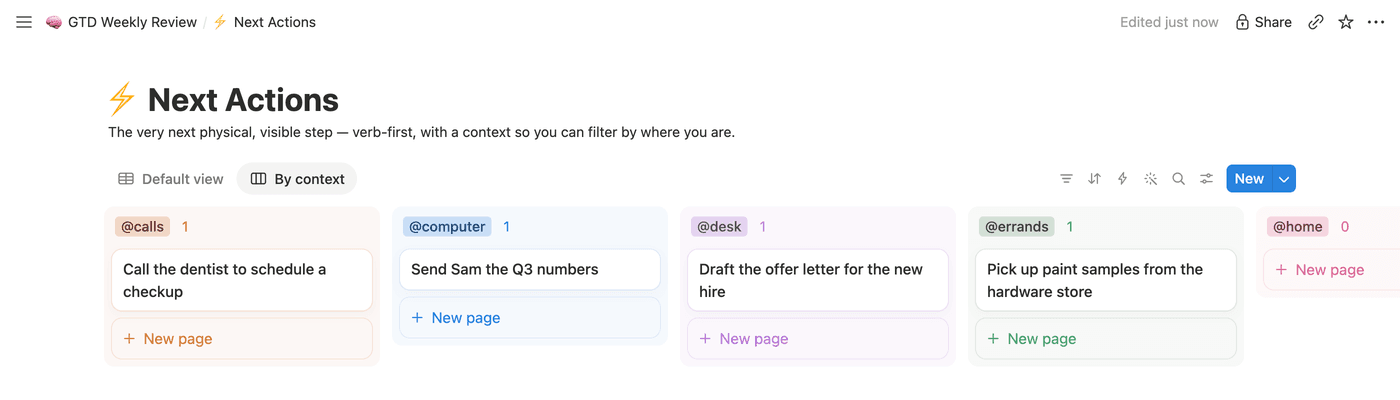
Two small habits keep the list honest. Tick Done rather than deleting, then add a filter of Done is unchecked to both views, so finished actions vanish from the working list but stay on the record for the weekly review. And keep the Due date empty unless the date is real; a date you made up is one more thing to ignore.
Step 5: Projects that know their next action
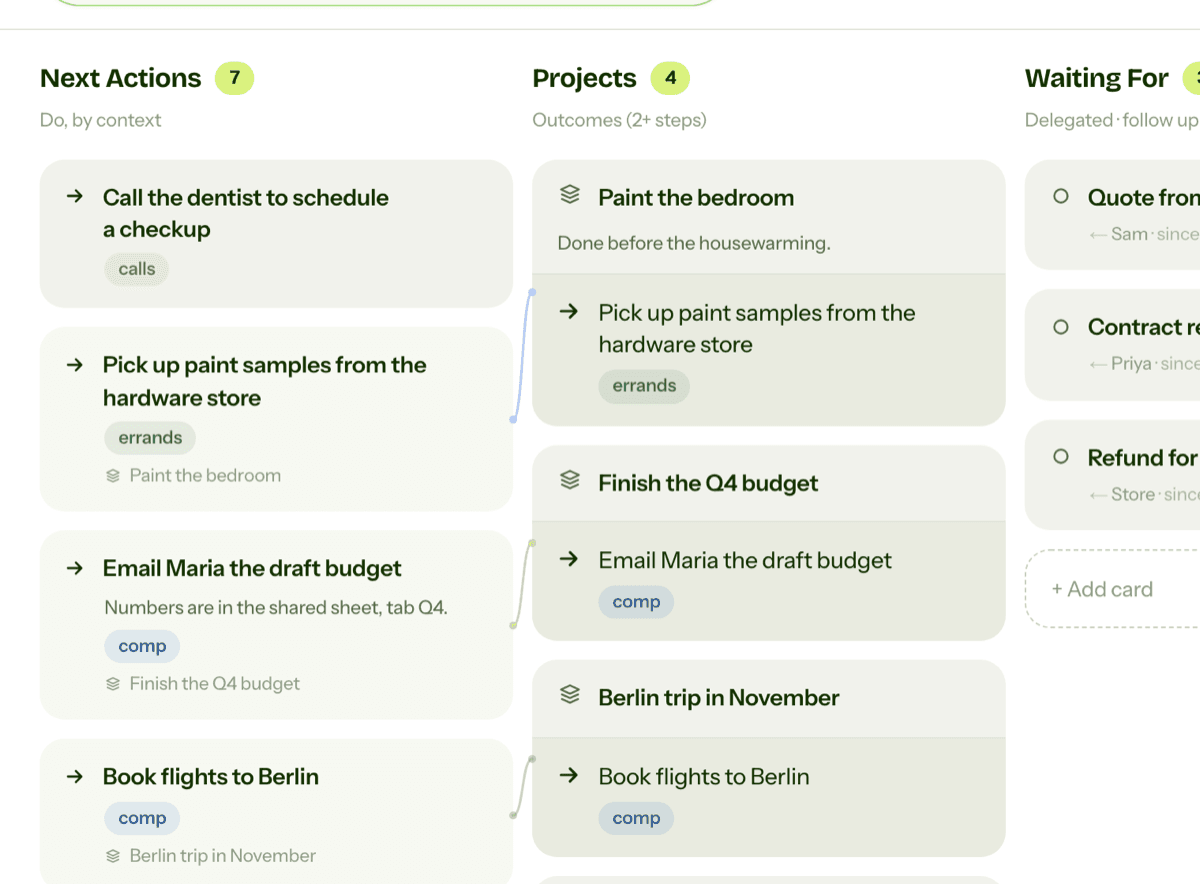
A project is any outcome that takes more than one action, phrased as the finished state: “Bedroom painted, furniture back in place”. The Projects database has one property that matters more than the rest, the Next actions relation. Because it is two-way, setting the Project on an action fills the project's column, and vice versa, and the project row shows you at a glance whether anything is actually moving it forward. An Active project with an empty Next actions cell is the most common way a GTD system goes stale, and here it is a blank cell you can see rather than a check you have to remember.
Add one more view to Projects if you have more than a handful: a table filtered to Status is Active. Done projects stay in the database as a record; On hold ones sit out of the way until the weekly review asks about them.
Step 6: Waiting For and Someday/Maybe
Anything you have handed to someone else goes in Waiting For with their name in Who and the date you asked in Since; the row for the electrician's quote in the sample data is the pattern. Sort the view by Since, oldest first, so the ones to chase float to the top. Tick Received when it arrives, and add the filter for Received unchecked, as with Done above.
Someday/Maybe is the parking lot: the trip, the language, the hallway you might repaint. One row per idea, an Area if it helps you browse, no dates and no contexts. It matters because half-formed ideas need a home that is not the Inbox and not your head, and because a Someday list you actually review is what makes it safe to say no to things now.
Step 7: the weekly review checklist
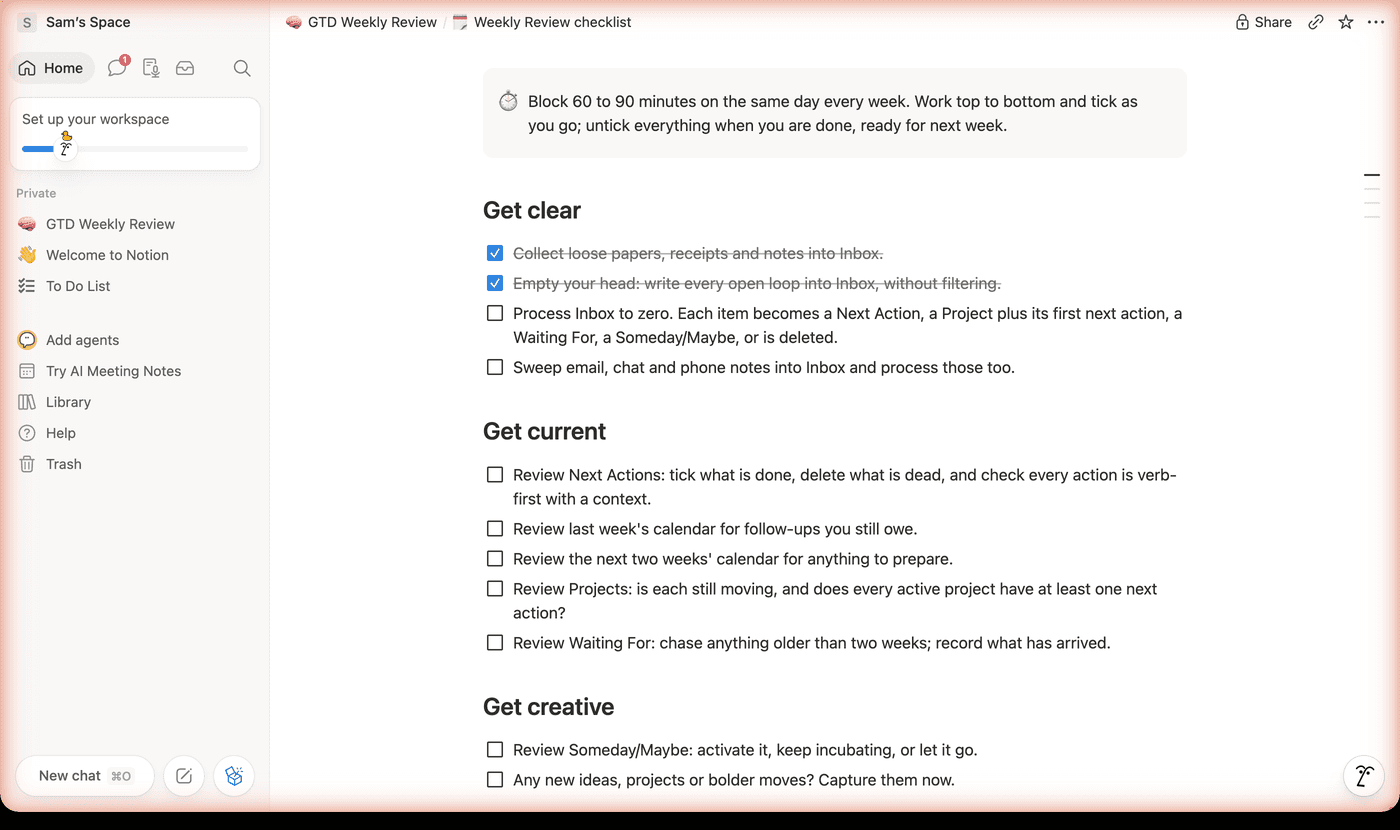
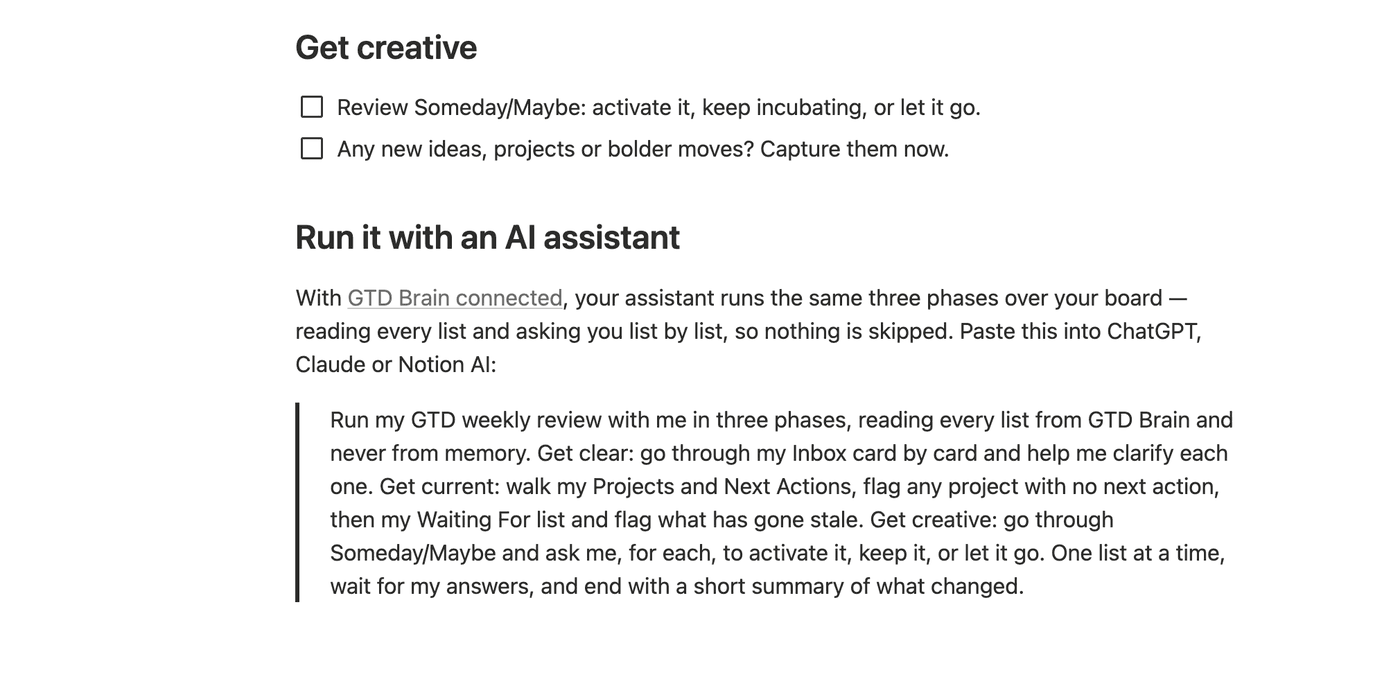
Open the Weekly Review checklist sub-page once a week, on the same day, with an hour blocked. It is a page of to-do blocks in the three classic phases. Get clear: collect loose notes, empty your head into Inbox, process Inbox to zero. Get current: review Next Actions, last week's and the next two weeks' calendar, every Project for a next action, and Waiting For for anything older than two weeks. Get creative: go through Someday/Maybe and decide, for each, to activate, keep or drop it. Tick as you go, and untick everything at the end so it is ready for next week. The list in the middle of the page is the review; the databases on the parent page are where you do the work.
Where Notion stops
Unlike the chat and notes apps in the other guides, Notion does not break as a list. The relation, the board view and the checkboxes hold up for years. What it never does is ask you anything. The empty Next actions cell on a stalled project is only visible if you open Projects and look; the Waiting For item from three weeks ago only stands out if you sort by Since; the review happens only if you open the checklist page. Every check in the system is something you do, on a page you scroll, and the week you skip it nothing tells you.
Capture is the other gap. On the desktop it is fine. On the phone it is open the app, find the page, find the Inbox, tap New, type, back out, which is enough friction that the thing you thought of on the bus goes into your head instead. And nothing outside Notion can add to the Inbox for you: not a message you forward, not a voice note, not an assistant you already talk to all day.
Step 8: let an assistant run the review
The template's checklist page ends with a prompt: the three phases of the weekly review written as instructions an assistant can follow against a board it can read. It needs a board the assistant can actually reach, which is where GTD Brain comes in. It is a Getting Things Done board with the same GTD lists and contexts as the template, plus a Reference list, and AI assistants can operate it: ChatGPT and Claude read every list from it and never from memory, walk you through the Inbox card by card, flag the project with no next action and the Waiting For that has gone stale, and end with what changed.
There are two ways to connect, and which one you can use depends on your Notion plan. On Business and Enterprise workspaces, Notion AI can connect to GTD Brain directly as a custom MCP server: Settings, Connections, Add Custom MCP, paste the server address from the Connect GTD Brain page, sign in with an email code, and ask Notion AI to run your weekly review without leaving Notion. On Free and Plus, that menu item does not exist, so connect the assistant you already use instead: ChatGPT has GTD Brain in its app directory, and Claude, Claude Code and Cursor connect in about three minutes each. The Notion connect guide has both paths step by step.
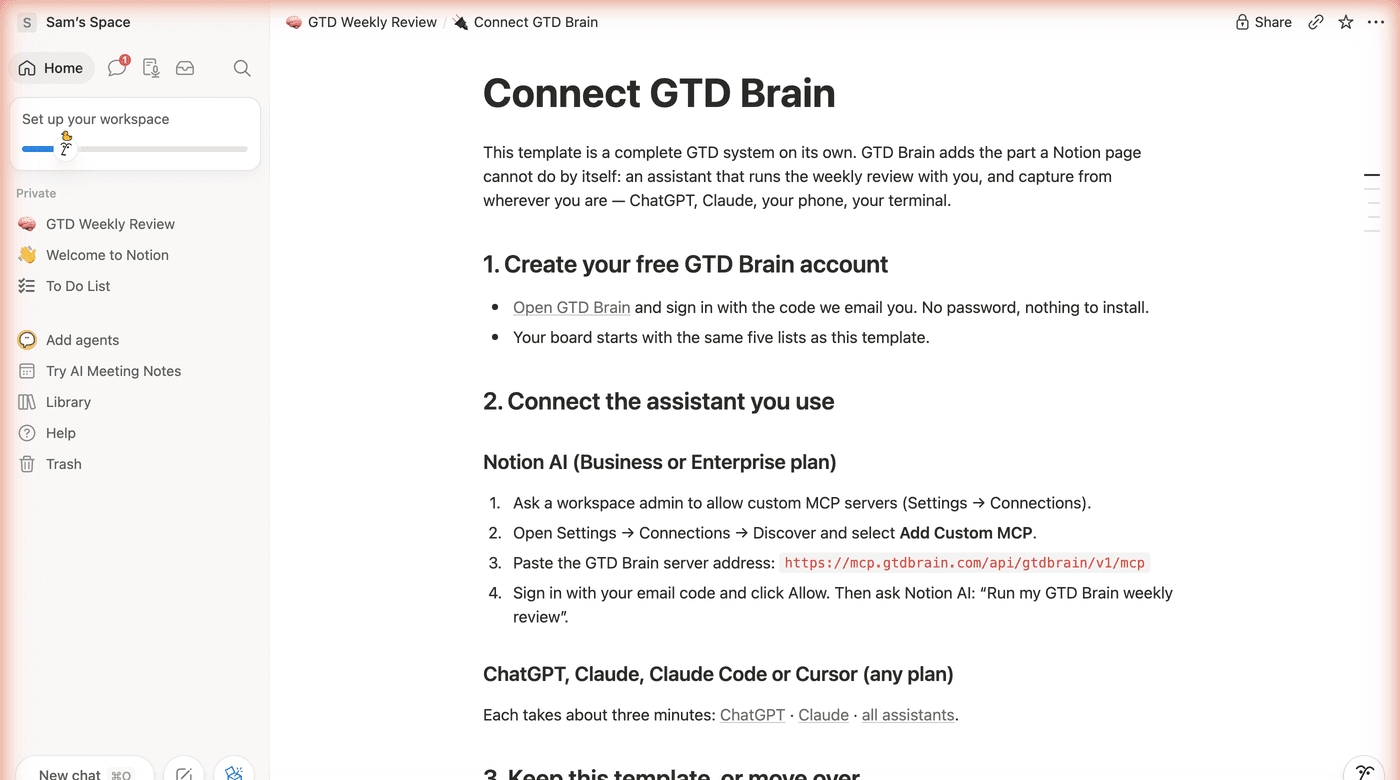
The template and GTD Brain do not sync, and the template's Connect page says so: a Notion page cannot talk to another app on its own. The lists and the contexts match on both sides, so moving a card across is a copy and paste, and it is fine to keep the Notion page as the review checklist and use the board for the lists. Then the phone, the Telegram bot, the browser extension and the assistants all capture into the same Inbox, and the review asks you the questions instead of waiting on a page.
If you want the method without the workarounds
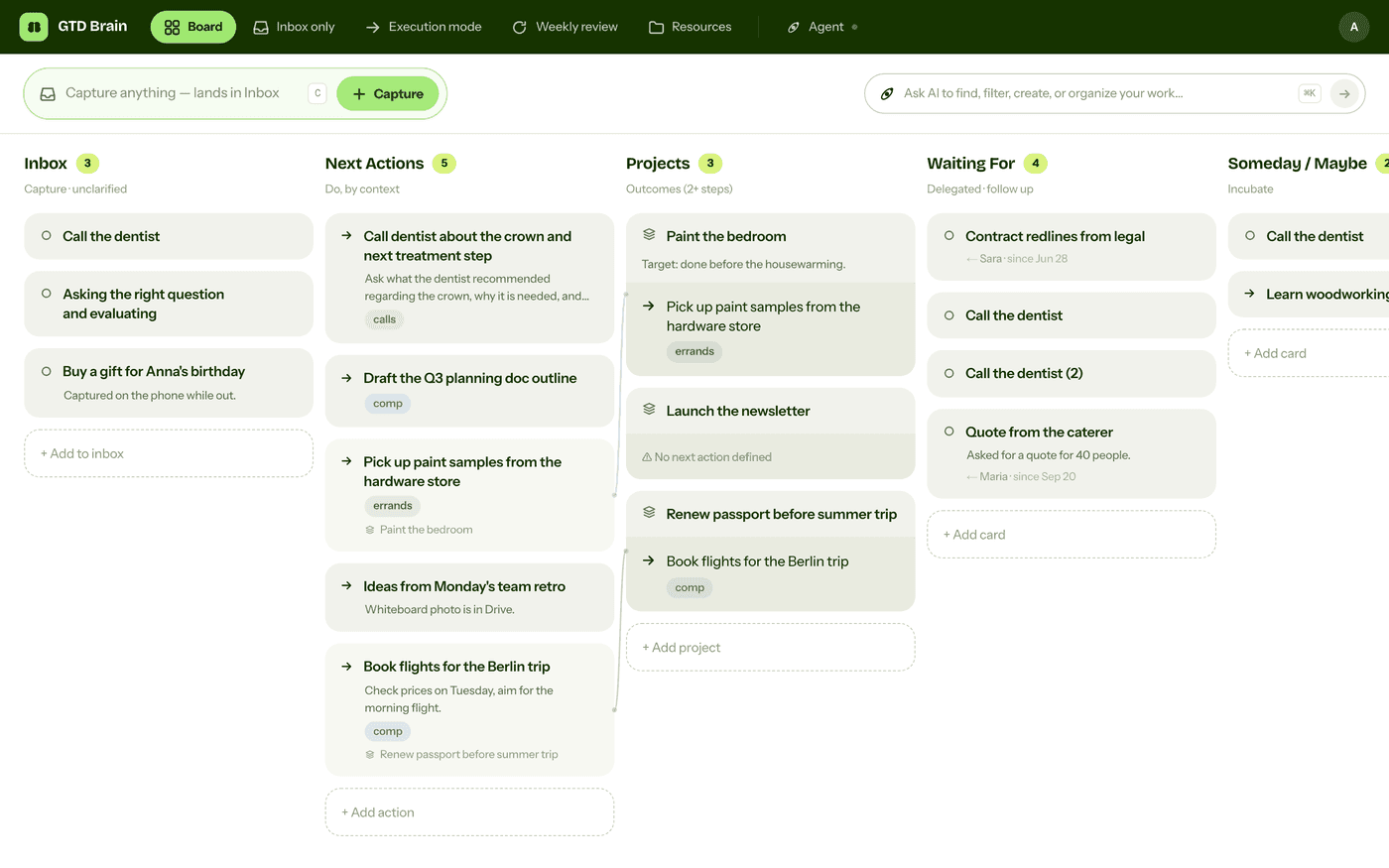
Everything above is real GTD, and plenty of people run it in Notion for years. I built GTD Brain for the parts that keep breaking: it is a board with the GTD lists built in (Inbox, Next Actions with contexts, Projects, Waiting For, Someday), a built-in agent that clarifies your inbox into next actions, and a guided weekly review that walks you through the whole board card by card. The same board is on the iPhone app, the Android app and the web, and you can talk to it from ChatGPT, Claude and other assistants through the assistant connections.
You sign in with an email code, no password. The yearly plan starts with a free month and you can cancel before it bills. If you have read this far, you already know how the lists work, so the setup takes about two minutes: sign in at gtdbrain.com and do your first brain dump into the inbox.
Questions people ask
Can you do GTD in Notion?
Yes, and better than in most general-purpose tools, because a Notion database can link a project to its next actions and show the same actions grouped by context. Duplicate the free GTD Weekly Review template: five databases (Inbox, Next Actions with contexts, Projects with a two-way link to their actions, Waiting For, Someday/Maybe) plus a weekly-review checklist, on any Notion plan.
What should a GTD template for Notion contain?
Five lists and nothing else at capture time. Inbox with a captured timestamp; Next Actions with a context select, a done checkbox and a link to a project; Projects with a status and the two-way relation back to its actions so an empty one stands out; Waiting For with who and since when; Someday/Maybe with an area. Priorities, energy levels and dashboards are decisions that slow capture down and can be added later.
How do you do a GTD weekly review in Notion?
Keep the review as a page of to-do blocks in three phases and open it once a week. Get clear: collect loose notes, empty your head into Inbox, process Inbox to zero. Get current: review Next Actions, the calendar, every Project for a next action, and Waiting For for anything older than two weeks. Get creative: decide for each Someday/Maybe item to activate, keep or drop it. Untick everything at the end.
Can Notion AI run a GTD weekly review?
On Business and Enterprise workspaces, yes: a workspace admin allows custom MCP servers, then Settings, Connections, Add Custom MCP with the GTD Brain server address, and Notion AI reads the board and runs the review with you. On Free and Plus that menu does not exist, so connect ChatGPT, Claude, Claude Code or Cursor to GTD Brain instead and paste the review prompt from the template's checklist page.
Start free for a month →No charge for your first month · Cancel anytime