How to do GTD in Telegram (and why Saved Messages stops working after a week)
A complete Getting Things Done setup in Telegram: Saved Messages as the inbox, one private channel per list in a GTD folder, hashtags as contexts, Waiting For from forwarded messages, a daily clarify and a weekly review, then the point where a chat stops behaving like a list and how a capture bot fixes it, with screenshots.
Start free for a month →No charge for your first month · Cancel anytime
On this page
The short version: Telegram is the best capture tool most people already have and a poor place to keep GTD lists. Saved Messages is an inbox that is open on every device you own, takes a typed line or a voice note in two seconds, and accepts anything forwarded from any other chat. So use it for that: capture into Saved Messages, keep one private channel per GTD list (Next Actions by context, Projects, Waiting For, Someday/Maybe), clarify the inbox once a day by moving each message to its channel, and read the channels once a week. That is a real Getting Things Done setup, it is free, and it runs on the phone, the desktop and the web. The rest of this guide is that setup step by step, then the point where the stream of messages stops behaving like a list, and what to do about it.
Step 1: Saved Messages is the Inbox
Open Telegram, search for Saved Messages, and pin it to the top of the chat list. From now on this is where everything lands first: type “dentist said something about a crown” and send it, hold the mic and say “passport expires next spring”, or long-press any message in any other chat and forward it here. Do not sort while you capture. The message someone sent you asking for the Q3 numbers is a fine inbox entry exactly as it is; deciding what it means is a separate step.
Two habits make this stick. Send to Saved Messages from the desktop app when you are at the computer and from the phone when you are not, because the whole point is that the inbox is wherever you are. And use voice notes when typing would make you skip the capture. Telegram can turn a voice note into text, but that is a Premium feature (with a few free ones a week), so on a free account the voice note stays a voice note until you listen to it at clarify time.
Step 2: one private channel per list
Telegram has no lists, so you build them out of chats. The version that works best is a private channel per GTD bucket, because a channel with one member is just a place to post messages to yourself, it is free, and it sits in the chat list next to everything else. Create these: @Calls, @Computer, @Errands, @Home for next actions, then Projects, Waiting For and Someday/Maybe. The @ prefix is only there so the context channels sort together and read differently from the other three. Put all seven in a chat folder called GTD so they have their own tab and stop competing with your group chats.
A cheaper version is hashtags in Saved Messages: end each message with #calls or #errands and tap the tag to see everything carrying it. It is one chat instead of seven, which is nice, but a tag search is a search result, not a list: it shows every message that ever had the tag, done or not, and it is a scroll through history rather than a thing you can look at. The channels are the better daily driver; hashtags suit an extra label like #15min on top.
Whichever you pick, every entry in a context channel is one physical action written so you can do it without thinking: “Call the dentist to book the crown fitting” in @Calls, “Buy a washer for the kitchen tap” in @Errands. When you are out, you open @Errands and nothing in it needs a computer.
Step 3: Projects
A project is anything that takes more than one action. Post one message per outcome in the Projects channel, phrased as the finished state: “Passport renewed before the spring trip”, “Kitchen tap fixed”. Do not put the steps in the Projects channel. The next physical step goes in the right context channel, and the project message stays as your reminder that the outcome is still open. You can edit a channel post later, so the project message is a good place for the running plan: edit it to add what you learned, what is done, what comes next.
Step 4: Waiting For
Anything you have handed to someone else goes in the Waiting For channel, one message per thing, with the person's name first and the date you asked: “Sam: the invoice payment (asked 12 Sep)”. Telegram actually gives you a small edge here, because the thing you are waiting on often started as a Telegram message: forward the message where you asked, and the channel shows who you asked and when without you typing either.
For the ones that need chasing on a date, Telegram has one real scheduling feature: in Saved Messages, long-press the send button and choose Set a Reminder, and the message arrives back in Saved Messages, with a notification, on the day you picked. “Chase Sam about the invoice” scheduled for next Friday is about as close as Telegram gets to a tickler file.
Step 5: Someday/Maybe
The parking lot. Ideas you are not committing to, trips, things to learn, the hallway you might repaint. One channel, no dates, no contexts. It matters because it gives half-formed ideas somewhere to go that is not the inbox and not your head, and because most of the links people forward to themselves belong here rather than in a context channel.
Step 6: clarify Saved Messages every day
Once a day, open Saved Messages and take each message from the top. If it is a single action, rewrite it as one and post it to the right context channel. If it takes more than one action, post the outcome in Projects and the first step in a context channel. If someone else has it, Waiting For. If it is not happening soon, Someday/Maybe. If it is nothing, delete it. Then delete the original from Saved Messages, because forwarding copies a message rather than moving it, and an inbox that keeps everything you have already processed is not an inbox. Saved Messages should be empty when you close it.
When an action is done, delete its message from the context channel. There is no checkbox, and no Completed list either, so if you want a record of what you finished, forward it to a Done channel before you delete it, or edit a ✅ onto the front and live with the clutter for a week. The habit that matters is that a context channel only ever contains things you can still do.
Step 7: the weekly review
There is no view that shows all seven channels at once, so the weekly review is the GTD folder read top to bottom, one channel at a time. Empty Saved Messages first. Then open Projects and, for each message, ask whether at least one next action for it exists in a context channel, and post one if it does not. Then Waiting For: chase anything older than a week, using the date in the message. Then Someday/Maybe: promote anything whose time has come, delete anything you no longer want. Schedule a reminder in Saved Messages for Friday afternoon that says “weekly review” and make it repeat by scheduling next week's at the end of each one.
Where it breaks
The setup above works for about a week, and then a specific thing happens: Saved Messages stops being an inbox and becomes a scrollback. It fills with things you meant to process, the ones from Tuesday are already above the fold, and because every message looks the same, a link you forwarded to read later sits next to a voice note that contains a commitment to a client. Nothing in the chat tells you which is which, or how many there are, or that the oldest one is nine days old. Chats are built to show you the newest thing; an inbox has to show you the oldest.
The context channels have the same problem in slow motion. A channel is a stream, so there is no way to reorder it, no count of what is left, and done means deleted, so the channel is only correct if you delete religiously. Nothing links a project message to its action in @Calls, so “does every project have a next action” is a check you do by eye, every week, for every project. And the search that makes hashtags work finds text, not state: it cannot show you actions with no project, projects with no action, or waiting-for items older than a week. Telegram shows you messages. It never asks you a question.
The honest summary is that Telegram is excellent at the first step of GTD and gives you nothing for the other four. Capture is fast, everywhere and takes voice. Clarifying, organising, reviewing and choosing what to do are all manual, and the tool actively works against the one that matters most, because a chat cannot stay empty.
Step 8: keep Telegram for capture, give the lists a board
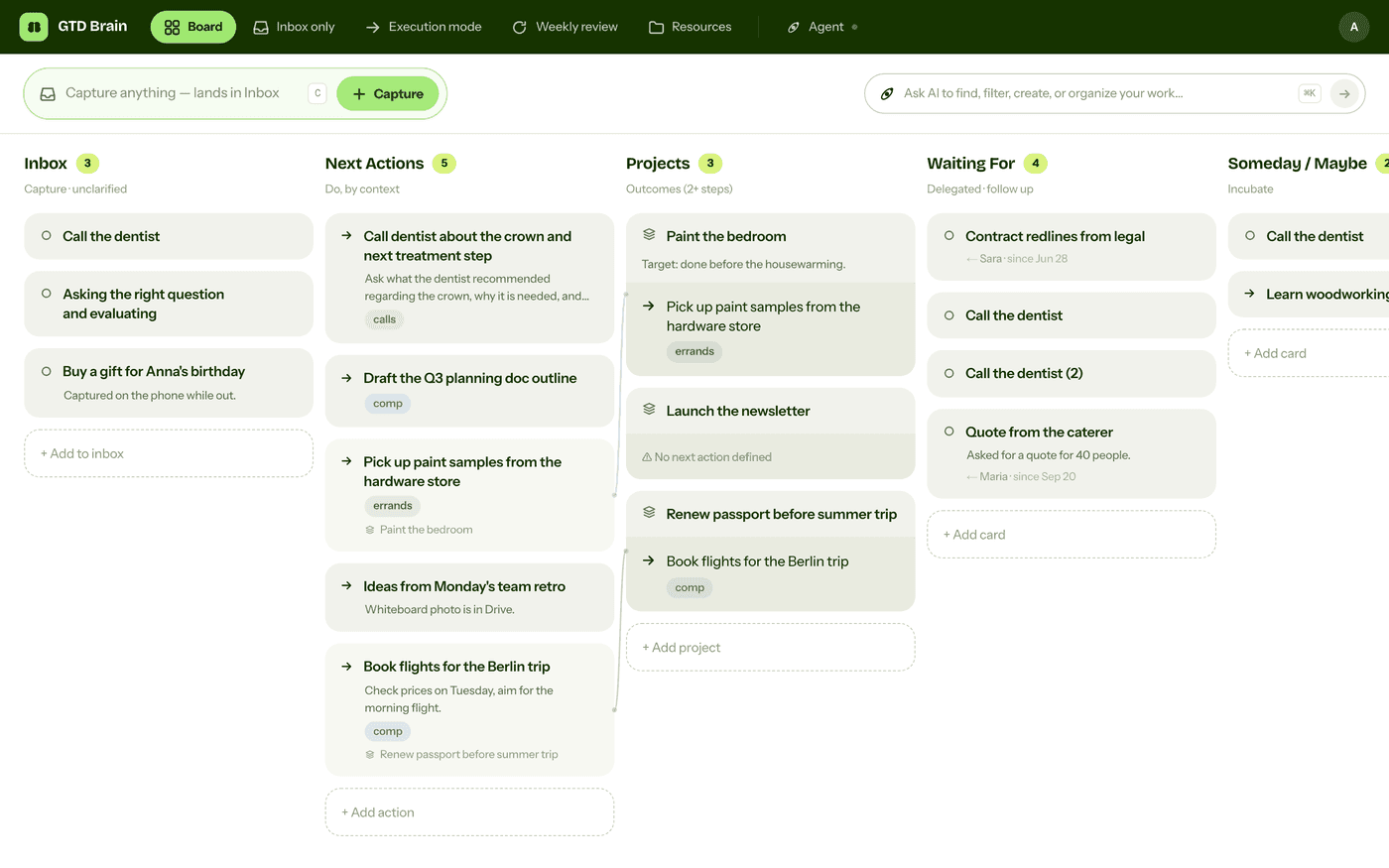
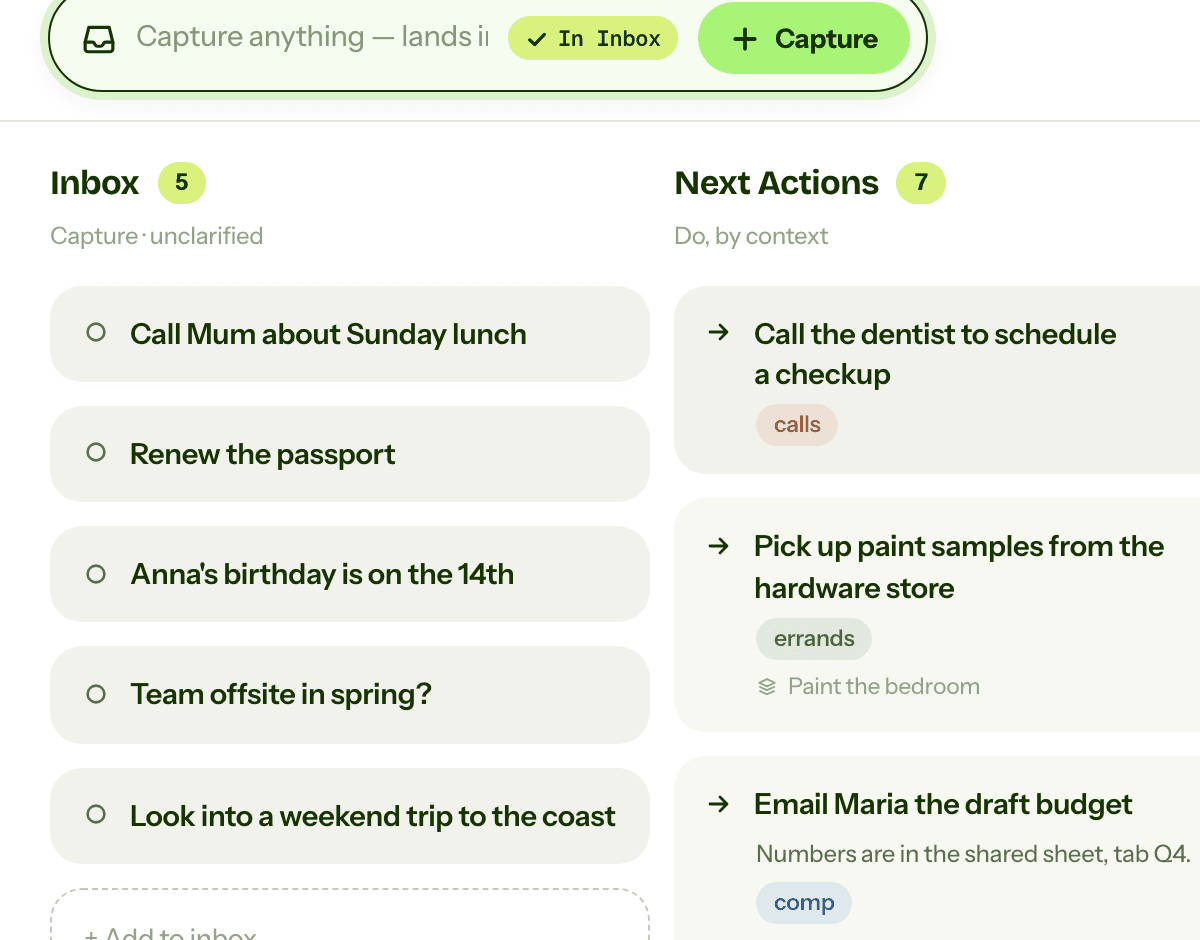
The fix is to keep the part that works and move the lists somewhere that behaves like lists. GTD Brain is a Getting Things Done board with the GTD lists built in, and it has a Telegram bot, @GTDBrainBot, that does the Saved Messages job properly. You link it once by replying with the email you use for GTD Brain and the 4-digit code it sends you. After that, anything you send the bot becomes a card in your Inbox on the board: the first line is the title, the rest is the notes. Send a voice note and the bot transcribes it into the card, in whatever language you spoke, and replies with the transcript so a misheard word is caught right there. No Premium needed.
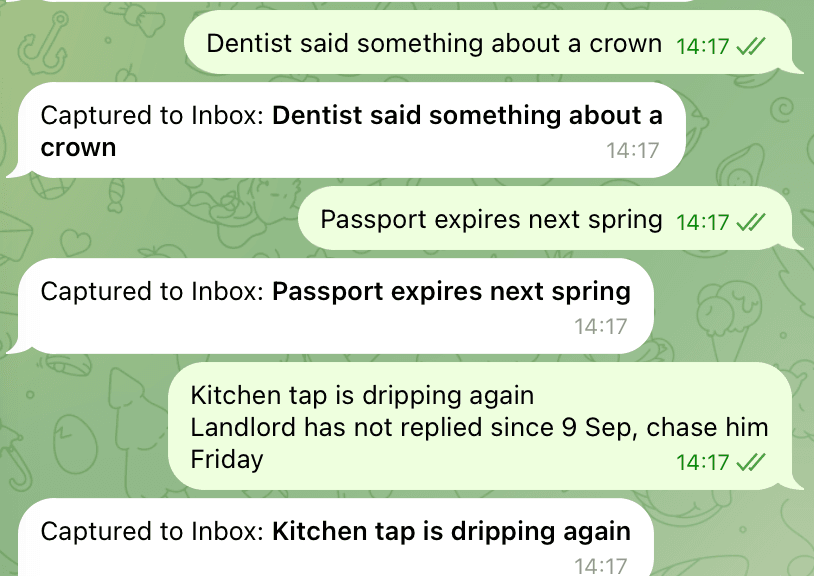
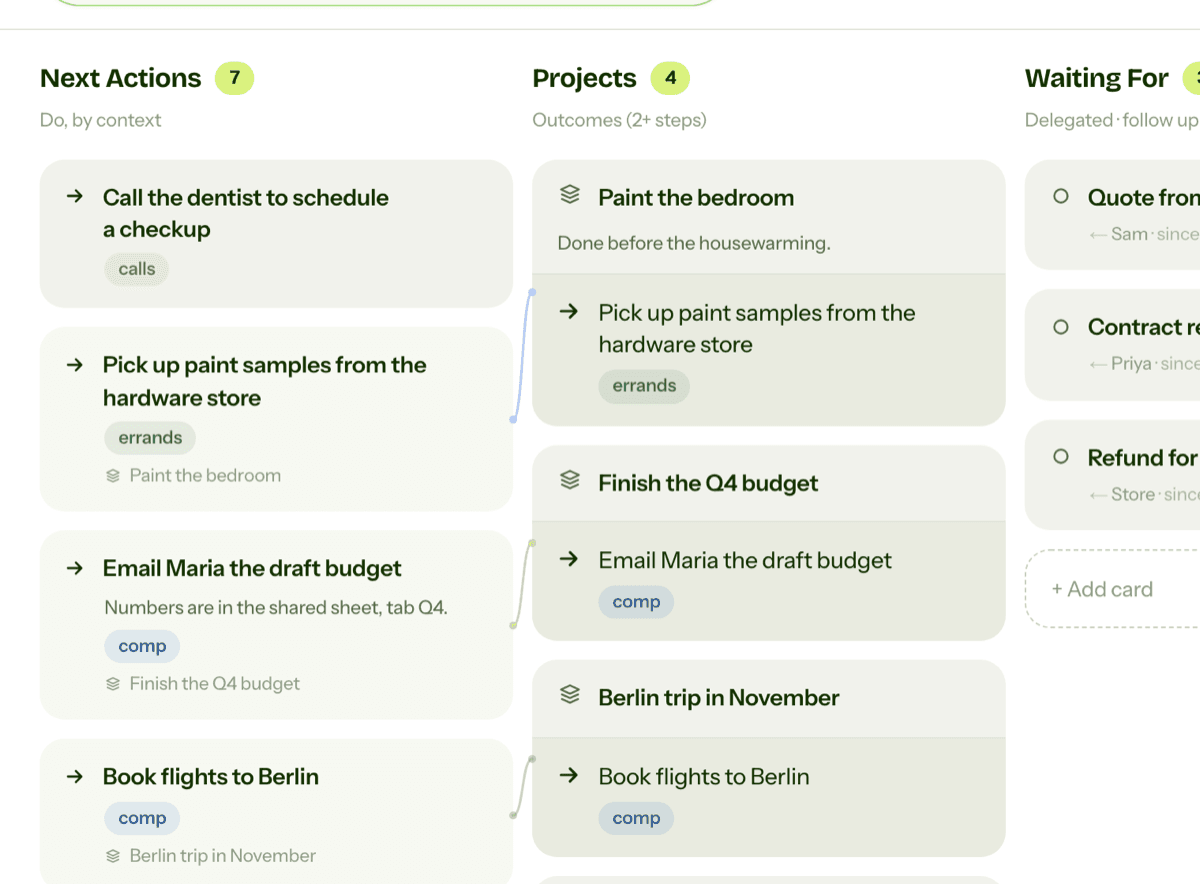
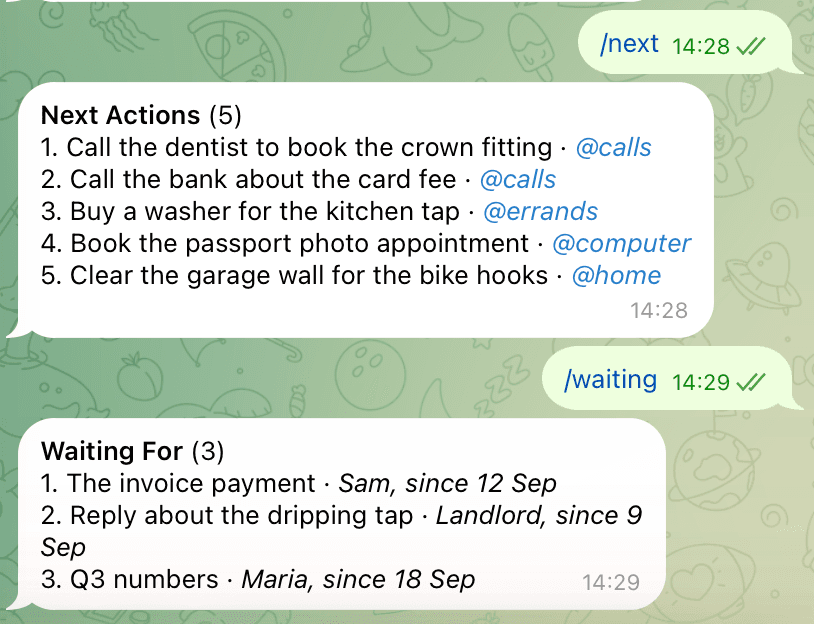
The bot reads your lists back too. /next answers with your Next Actions and their contexts, /waiting with who you are waiting on and since when, /inbox and /projects with the rest. So “what can I do while I am out” is a command in a chat you already have open, and the answer comes from a real board that knows which cards are done. The bot is deliberately capture-and-read only: it never edits, moves or deletes anything, so a mistyped message can only ever add an Inbox card. Clarifying happens on the board, where the Inbox is a column you can actually empty, a project is linked to its next action and flagged when it has none, and the weekly review walks you through every card, stalled projects first.
Setup is a minute: open the bot, send /start, reply with your email, reply with the code. A free account gets three actions through the bot, captures and list requests alike; after that it needs the same subscription that covers the apps. The Telegram bot guide has the details and the troubleshooting. The same board is on your phone and the web, and you can talk to it from ChatGPT and Claude through the same account, so the voice note you sent from Telegram on the bus is the card ChatGPT clarifies for you in the evening.
If you want the method without the workarounds
Everything above is real GTD, and plenty of people run it in Telegram for years. I built GTD Brain for the parts that keep breaking: it is a board with the GTD lists built in (Inbox, Next Actions with contexts, Projects, Waiting For, Someday), a built-in agent that clarifies your inbox into next actions, and a guided weekly review that walks you through the whole board card by card. The same board is on the iPhone app, the Android app and the web, and you can talk to it from ChatGPT, Claude and other assistants through the assistant connections.
You sign in with an email code, no password. The yearly plan starts with a free month and you can cancel before it bills. If you have read this far, you already know how the lists work, so the setup takes about two minutes: sign in at gtdbrain.com and do your first brain dump into the inbox.
Questions people ask
Can you do GTD in Telegram?
Yes, for capture and simple lists. Use Saved Messages as the Inbox — typed, voice note or forwarded from any chat — and one private channel per GTD list (@Calls, @Computer, @Errands, @Home, Projects, Waiting For, Someday/Maybe) grouped in a chat folder. Clarify Saved Messages daily by posting each item to its channel and deleting the original, and read the channels once a week.
How do you use Saved Messages as a GTD inbox?
Pin Saved Messages to the top of the chat list and send everything there first: a typed line, a voice note, or any message forwarded from another chat. Do not sort while you capture. Once a day, take each message from the top, post it to the right list channel and delete it from Saved Messages, so the chat is empty when you close it — an inbox that keeps processed items is a scrollback, not an inbox.
Why does GTD in Telegram stop working after a week?
Because a chat shows you the newest message and an inbox has to show you the oldest. After a week Saved Messages holds a mix of links, voice notes and commitments that all look the same, with no count, no checkbox and no age. The list channels are streams too: done means deleted, nothing links a project to its next action, and search finds text, not state. Capture is excellent; everything after it is manual.
How do you capture to a real GTD board from Telegram?
Message the GTD Brain bot, @GTDBrainBot. Link it once by replying with your email and the 4-digit code it sends, and from then on anything you send becomes an Inbox card on the board — a voice note is transcribed into the card and the transcript is echoed back. /next, /waiting, /inbox and /projects read your lists; the bot only captures and reads, so clarifying and the weekly review happen on the board.
Start free for a month →No charge for your first month · Cancel anytime