How to do GTD in Chrome (open tabs, the Reading List, and a GTD Chrome extension)
A Getting Things Done setup in the browser: treat open tabs as an inbox, use the Reading List and one bookmarks folder per list with each bookmark renamed to its next action, tab groups for active projects, a daily pass to zero tabs and a weekly review, then where bookmarks stop being tasks and the GTD Brain extension for Chrome, Edge and Firefox that captures a page or a selection to the Inbox, with screenshots.
Start free for a month →No charge for your first month · Cancel anytime
On this page
The short version: a browser is where a large part of your inbox arrives (emails, tickets, articles, things to buy, forms to fill in), but it has no lists of its own. What it has instead is open tabs, and a tab you keep open “so I don't forget” is an open loop you have not decided about yet. So treat the tab strip as an inbox. Chrome already has enough to run the rest of Getting Things Done: the Reading List for pages you have not processed, a bookmarks folder per GTD list with each bookmark renamed to the next action, tab groups for the project you are working on, a daily pass that gets the tabs to zero, and a weekly review of the folders. This guide sets that up, shows where it stops working, and then covers the GTD Chrome extension we make, which sends a page or a selection straight to a GTD Inbox.
Why open tabs are a GTD problem
GTD asks you to get every open loop out of your head into one trusted inbox, then decide what each one means. Tabs skip the second half. A tab for a visa form, a tab with a product you might buy and a tab with an article someone sent you all look the same in the tab strip, and none of them says what you intend to do. After a few days you have forty of them, you are afraid to close any, and the browser has become a second, unprocessed inbox that also slows your laptop down.
The fix is the same one GTD uses everywhere: capture freely, then clarify on a schedule. A tab is allowed to exist while you use it. When you stop using it, it either becomes an item on a list, with a name that says what to do, or it gets closed.
Step 1: the Reading List is the Inbox for pages
Chrome's Reading List holds pages you have not dealt with yet. Right-click a tab and choose Add tab to reading list. The list opens in the side panel, keeps unread pages above read ones, and syncs to Chrome on your phone when you are signed in to Chrome. That makes it a decent inbox for anything with a URL: send the page there, close the tab, and move on with what you were doing.
Do not sort while you capture. The only question at capture time is “do I need this later?” If yes, Reading List. Deciding what it means is a separate step.
Step 2: one bookmarks folder per GTD list
Make a folder called GTD on the bookmarks bar, with one subfolder per list: @Computer (next actions you do in the browser), Waiting For, Someday/Maybe and Reference. Contexts like @Calls or @Errands have little to do in a browser, so leave them out here. Edge and Firefox work the same way with their own bookmark folders.
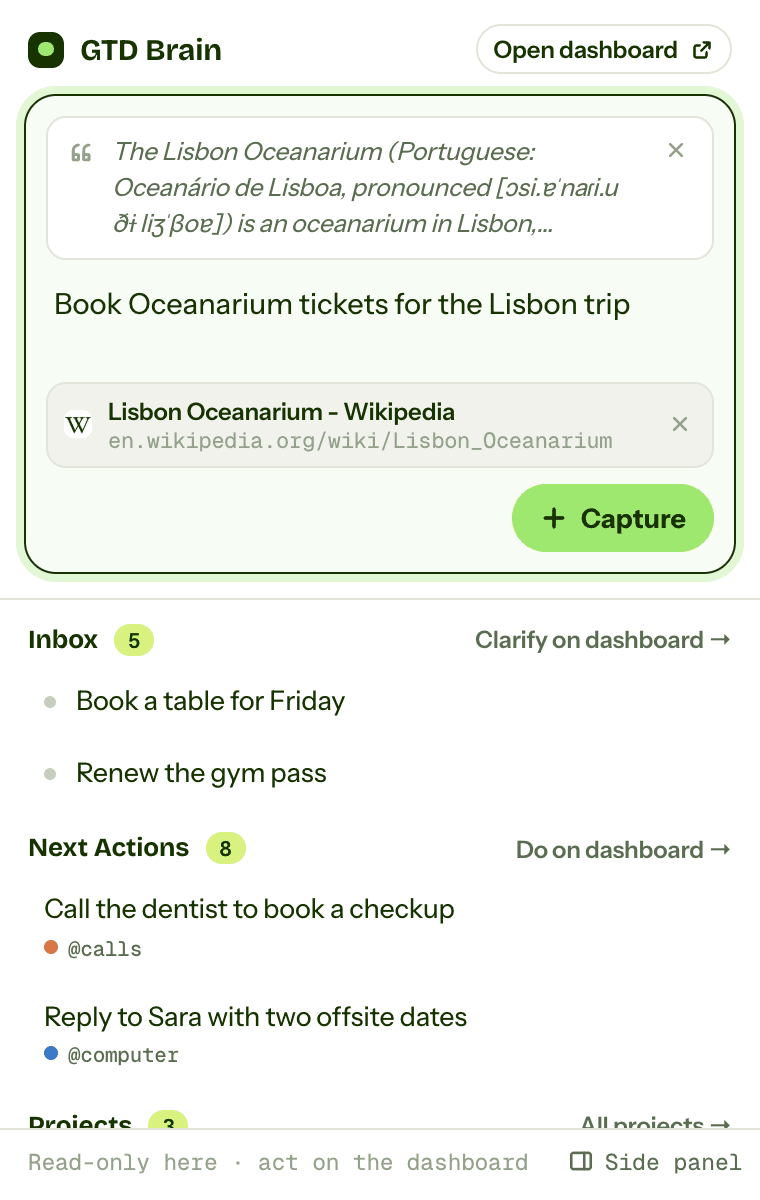
The one habit that turns bookmarks into a GTD list is renaming. A bookmark saved as “Lisbon Oceanarium - Wikipedia” is a reference. The same bookmark renamed to “Book Oceanarium tickets for the Lisbon trip” is a next action. The box that opens when you click the bookmark star lets you change the name before you save, so do it there, verb first, specific enough that you could do it without opening the page to remember why you saved it.
Step 3: tab groups for the project you are working on
A project in GTD is any outcome that takes more than one step. When you work on one in the browser, put its tabs in a named tab group (right-click a tab, Add tab to new group) with the outcome as its name: “Lisbon trip booked”. Chrome can save a group so it survives closing the window and comes back from the bookmarks bar.
Keep this for active projects only. A saved group per project quietly becomes another place where decisions wait. The project's next action still belongs in @Computer as a renamed bookmark, so that the list of things to do stays in one place.
Step 4: Waiting For is the page where you asked
Most things you wait on in a browser have a page: the sent email, the support ticket, the order confirmation. Bookmark that page into Waiting For and rename it to the person and the date you asked: “Sam: the invoice (asked 12 Sep)”. When you chase, the bookmark opens the exact thread.
Step 5: get the tabs to zero once a day
Once a day, go through the Reading List and the open tabs, one at a time. If it takes less than two minutes, do it now and close the tab. If it is a single action, bookmark it into @Computer with an action name. If it is waiting on someone, Waiting For. If it is an idea for later, Someday/Maybe. If you only want to keep it, Reference. Otherwise close it. Mark the Reading List item read, or remove it, as you go.
The number of open tabs is your inbox count. It does not have to be zero all day, but it should reach zero once.
Step 6: the weekly review
Once a week, open the GTD folder and read each subfolder top to bottom. Delete @Computer bookmarks you have done (bookmarks have no done state, so deleting is the only way to tick one off). Chase anything in Waiting For older than a week. For each saved tab group, check that its project has a next action in @Computer, and delete the group if the project is finished. Promote or delete Someday/Maybe items. Then empty the Reading List.
Where it breaks
The setup above is honest GTD, and it keeps the tab strip under control. It has three limits you hit quickly.
First, only things with a URL fit. The call to the dentist, the tap washer to buy and the idea you had on the bus have no page, so they end up somewhere else, and GTD depends on having one inbox for everything. Second, bookmarks are links, not tasks. There is no done state, no date except the one you typed into the name, no context beyond the folder, and nothing links a tab group to its next action, so “does every project have a next action” is a check you do by eye. Third, the lists live in one browser account. Chrome at work and Firefox at home do not share bookmarks, and neither shows up in a to-do app on your phone.
The browser is very good at the first step of GTD, collecting, and gives you nothing for clarifying or reviewing.
Step 7: the GTD Chrome extension
GTD Brain is a Getting Things Done board, and its browser extension replaces the Reading List step: instead of saving a link to deal with later, you capture the page into the same Inbox your phone and your assistants use. It is live in the Chrome Web Store, in Edge Add-ons and on Firefox Add-ons. A Safari version is in App Store review and cannot be installed yet.
Install it, pin it to the toolbar (the puzzle-piece menu, then the pin), click the icon and sign in with your email. We send you a one-time code; there is no password. The extension needs a GTD Brain membership, the same one that covers the web and phone apps. If your account has none yet, it shows a Start your free month button that opens checkout for the yearly plan, which starts with a free month.
Capture a page, or the part of it you selected
Click the icon and the cursor is already in the capture field. The page you are on is attached by default, with its title and link, and any text you selected on the page comes along as a quote. Type the next action in your own words and press Enter: “Book Oceanarium tickets for the Lisbon trip”. The card lands at the top of your Inbox with the quote and the link in its notes. Leave the field blank and the page title becomes the card title. Remove the page or the quote with their x buttons when you only want the words. Shift+Enter adds a new line. The first screenshot at the top of this guide shows this moment.
If you prefer the keyboard, open chrome://extensions/shortcuts and give GTD Brain a shortcut for Activate the extension. Then capture is one key combination, a sentence and Enter.
Keep the lists next to the page
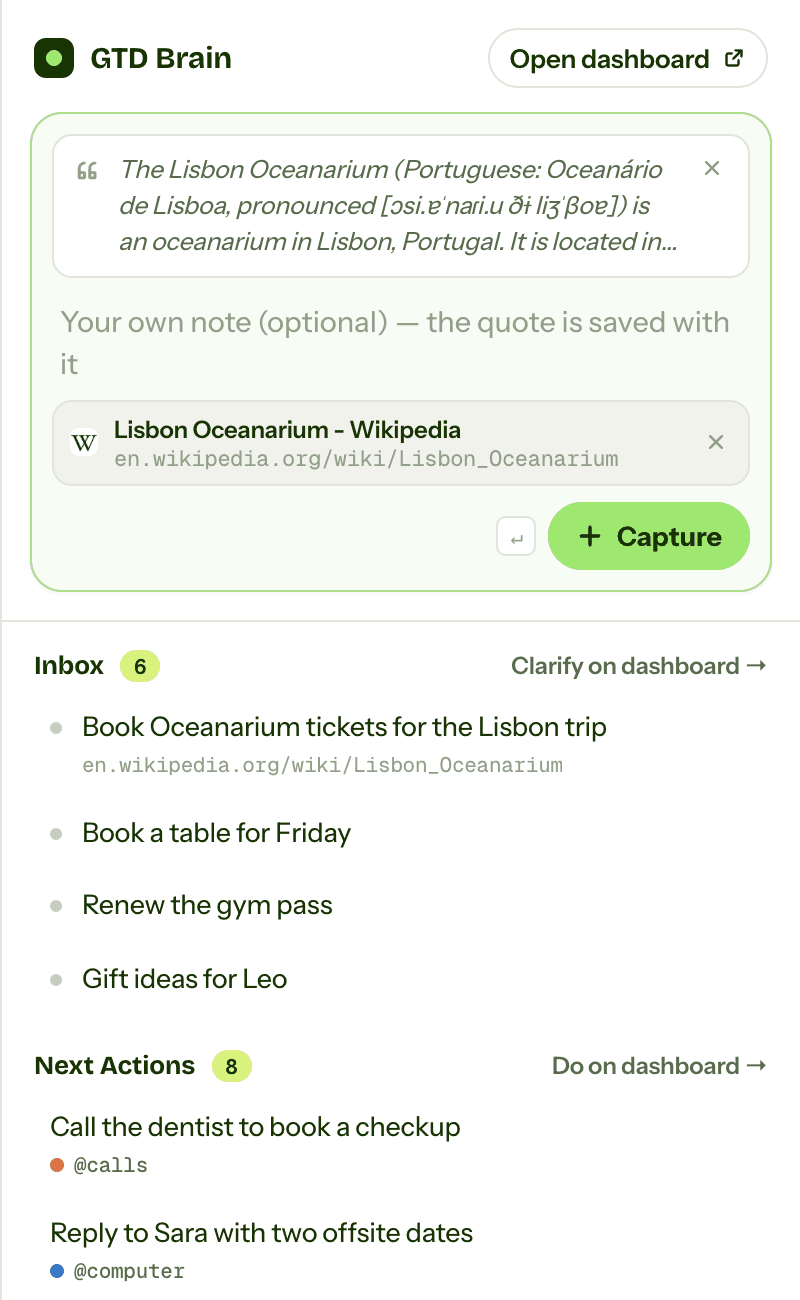
The Side panel link at the bottom of the popup opens the same view in Chrome's side panel (in Firefox, the sidebar). It follows the tab you are on, so the attached page and selection change as you browse, and it shows the top of your Inbox, your Next Actions with their contexts and your Projects with their next action. The lists are read-only in the extension. Clicking a card opens it on the dashboard, where you clarify, move and finish cards. The second screenshot at the top shows the panel just after that capture.
Clarify on the board
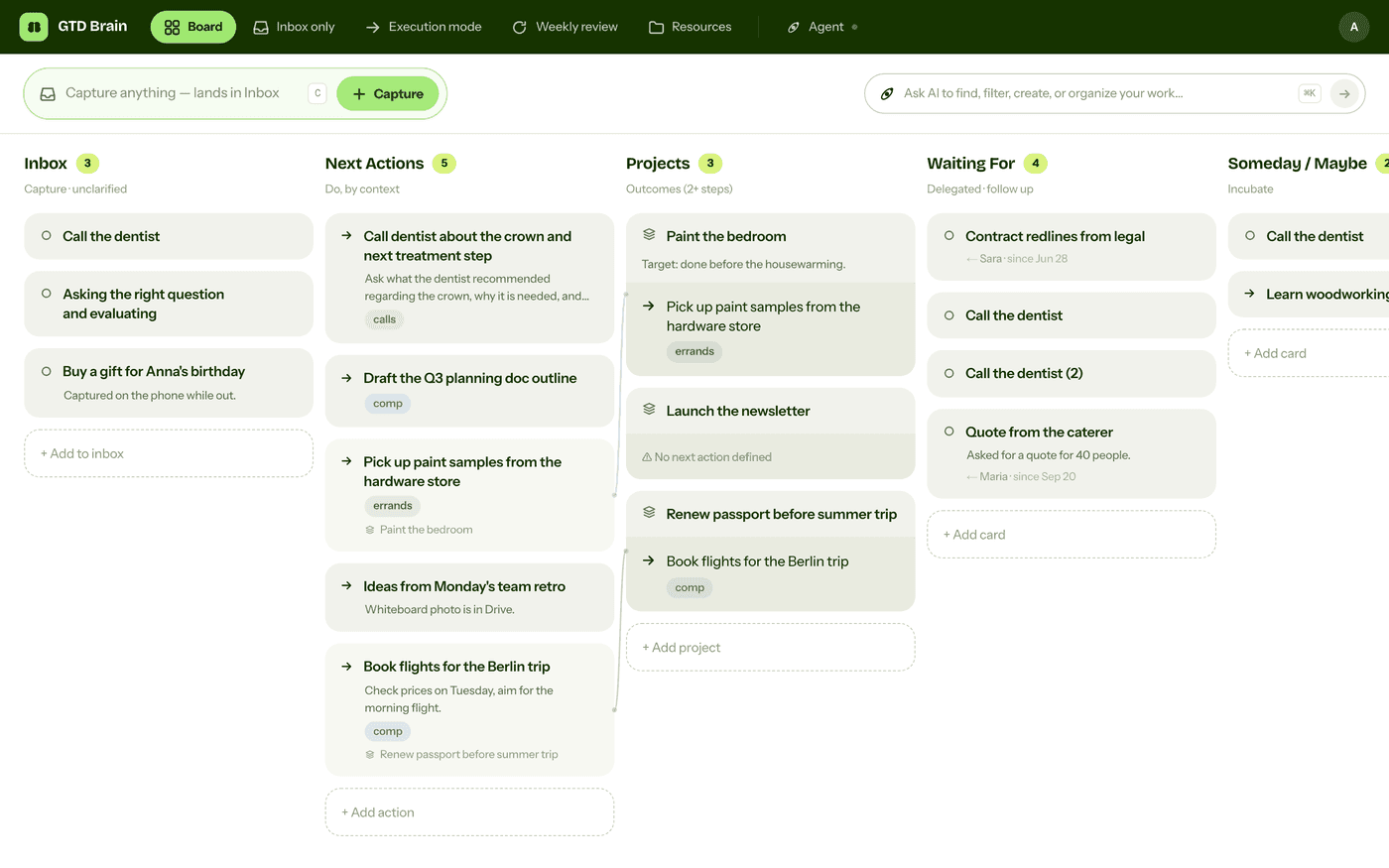
The daily pass from Step 5 now happens on the board instead of in bookmark folders. Each Inbox card becomes a next action with a context, a project with a next action, a Waiting For item with who and since when, or a Someday/Maybe item, and the link and quote you captured stay in the card's notes. The built-in agent can do the sorting for you, and the weekly review walks you through every card. Because the board is also an MCP server, you can ask ChatGPT or Claude about the same cards through the assistant connections.
You can keep the bookmark folders for Reference. What moves to the board is everything you need to act on, including the things that never had a URL.
If you want the method without the workarounds
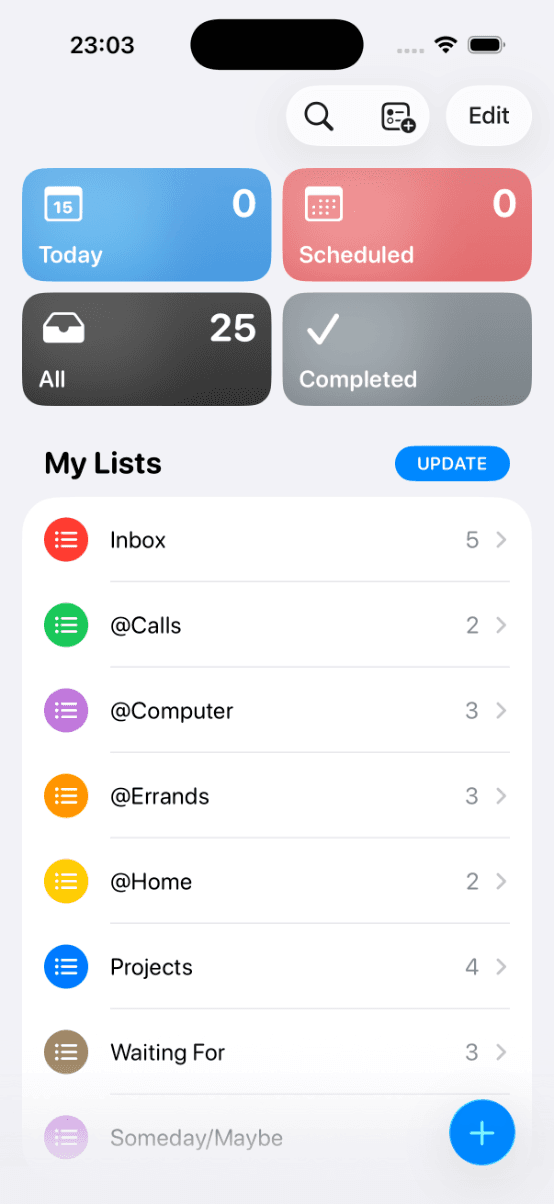
Everything above is real GTD, and plenty of people run it in your browser for years. I built GTD Brain for the parts that keep breaking: it is a board with the GTD lists built in (Inbox, Next Actions with contexts, Projects, Waiting For, Someday), a built-in agent that clarifies your inbox into next actions, and a guided weekly review that walks you through the whole board card by card. The same board is on the iPhone app, the Android app and the web, and you can talk to it from ChatGPT, Claude and other assistants through the assistant connections.
You sign in with an email code, no password. The yearly plan starts with a free month and you can cancel before it bills. If you have read this far, you already know how the lists work, so the setup takes about two minutes: sign in at gtdbrain.com and do your first brain dump into the inbox.
Questions people ask
Is there a GTD Chrome extension?
Yes. GTD Brain has an extension in the Chrome Web Store, and the same one is in Edge Add-ons and Firefox Add-ons. Click its icon, type a next action and press Enter: the card lands in your GTD Inbox with the page link and any selected text as a quote. A side panel shows your Inbox, Next Actions and Projects. It needs a GTD Brain membership; the yearly plan starts with a free month.
Can you do GTD in Chrome without an extension?
Yes, for anything with a URL. Use the Reading List as the inbox for pages, a GTD bookmarks folder with subfolders for @Computer, Waiting For, Someday/Maybe and Reference, and rename every bookmark to its next action. Put an active project's tabs in a named tab group. Get the open tabs to zero once a day and read the folders once a week.
How do you stop open tabs from becoming a second inbox?
Treat the tab strip as an inbox and process it once a day. For each tab: do it now if it takes under two minutes, save it as a renamed bookmark in the right GTD folder if it is an action, a waiting-for or a someday item, or close it. The open tab count is your inbox count, and it should reach zero once a day.
Does the GTD Brain extension work in Edge, Firefox and Safari?
Edge and Firefox, yes: it is live in Edge Add-ons and on Firefox Add-ons, with the same capture and lists as in Chrome (Firefox shows them in its sidebar instead of a side panel). The Safari version is in App Store review and cannot be installed yet. On every browser you sign in with the same email code and see the same board.
Start free for a month →No charge for your first month · Cancel anytime