How to do GTD in Grok (connect a GTD board as a custom connector)
Add GTD Brain, a GTD (Getting Things Done) board, to Grok as a custom connector, then capture, clarify and run the weekly review from a chat.
Start free for a month →No charge for your first month · Cancel anytime
On this page
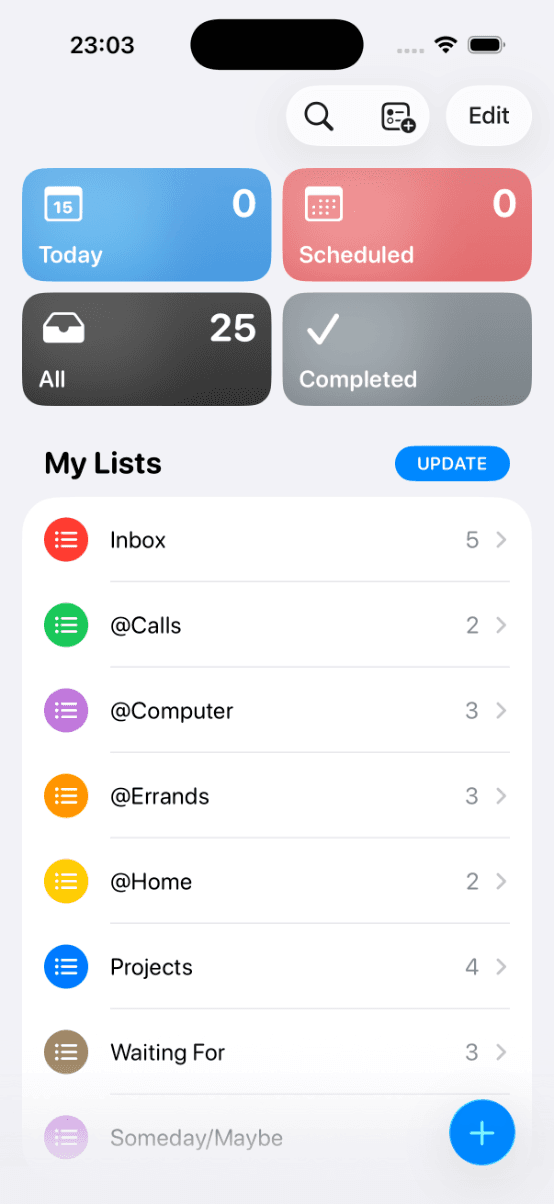
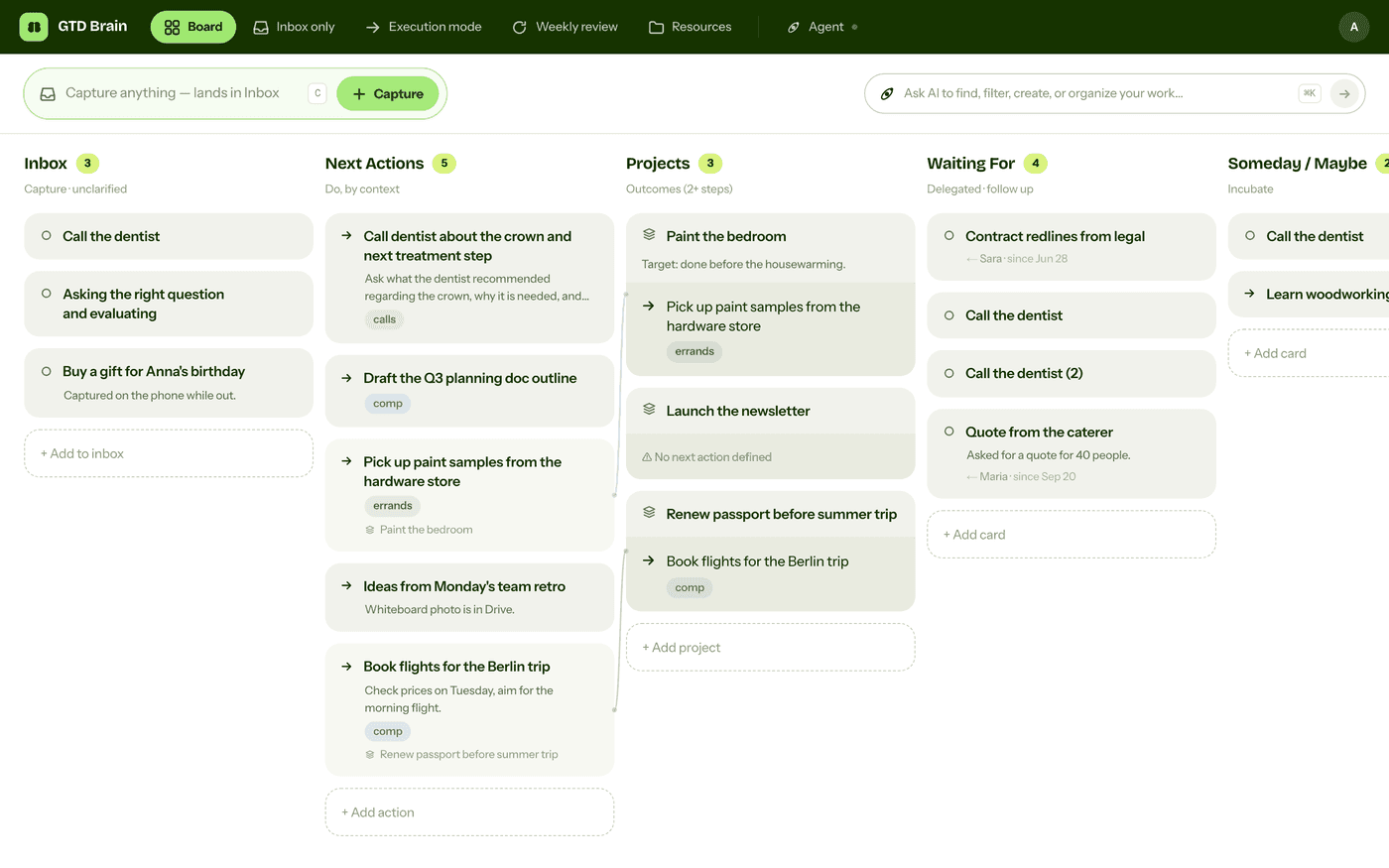
Grok can help with the thinking parts of GTD (Getting Things Done): turning a messy inbox into next actions, or walking you through a weekly review. What it lacks is a place to keep your lists between chats. GTD Brain is a GTD board that Grok can connect to as a custom connector. Grok then reads and updates the same board you see on the web and on your phone:
Step 1: add GTD Brain as a custom connector
Custom connectors are only on Grok’s paid plans. GTD Brain is not in Grok’s connector catalog, so you add it by its address. Go to grok.com/connectors, click New Connector, then Custom, and paste this address as the server URL:
https://mcp.gtdbrain.com/api/gtdbrain/v1/mcpGrok then asks you to authenticate. A GTD Brain sign-in window opens: enter your email and the code we send you, then click Allow. Grok can read, add, edit, move and archive cards. It can never delete one. There is no API key to copy.
Using the board from Grok needs a GTD Brain membership. The yearly plan starts with a free month.

Step 2: capture, clarify, review
To capture, name the thing: “Add renew my passport to my GTD Brain inbox.” Mention GTD Brain the first time in a chat so Grok uses the connector instead of answering from memory. To pick what to do, ask “What are my next actions for @errands?”
Once a day, ask: “Go through my inbox one item at a time and ask me what each one is.” On Friday, ask: “Run my weekly review, one list at a time, and wait for my answer.” Grok moves the cards as you decide. Waiting For keeps who and since when, so “Who am I waiting on?” also tells you how long each item has waited.
More
The same board works with ChatGPT, Claude, Cursor and the other assistant connections. For a walkthrough with screenshots, see GTD in Claude, which uses the same sign-in.
Questions people ask
Can you do GTD (Getting Things Done) in Grok?
Yes, with a board to hold the lists. Grok is useful for clarifying an inbox into next actions and for a weekly review, but a new chat does not carry over the lists from the last one. Connect it to a GTD board such as GTD Brain and every chat reads and updates the same Inbox, Next Actions, Projects and Waiting For lists.
How do you connect Grok to GTD Brain?
On a paid Grok plan, go to grok.com/connectors, click New Connector, choose Custom and paste the address below as the server URL. Sign in with your email and the code we send you, then click Allow.
https://mcp.gtdbrain.com/api/gtdbrain/v1/mcpDoes GTD Brain work with the free version of Grok?
No. xAI offers custom connectors only on paid Grok plans, so the free version cannot add GTD Brain. Using the board from any assistant also needs a GTD Brain membership, the same one that covers the web, iPhone and Android apps. The yearly plan starts with a free month.
Can I use GTD Brain with the xAI API instead of grok.com?
Not today. The xAI API's remote MCP tool sends a fixed token in the Authorization header, and GTD Brain has no API keys: every connection signs in with an email code and an Allow step. Use the custom connector on grok.com, or any other MCP client that supports that sign-in, such as Claude, ChatGPT or Cursor.
Start free for a month →No charge for your first month · Cancel anytime